IPTV Black Screen but Audio Works? Common Causes and Step-by-Step Fixes
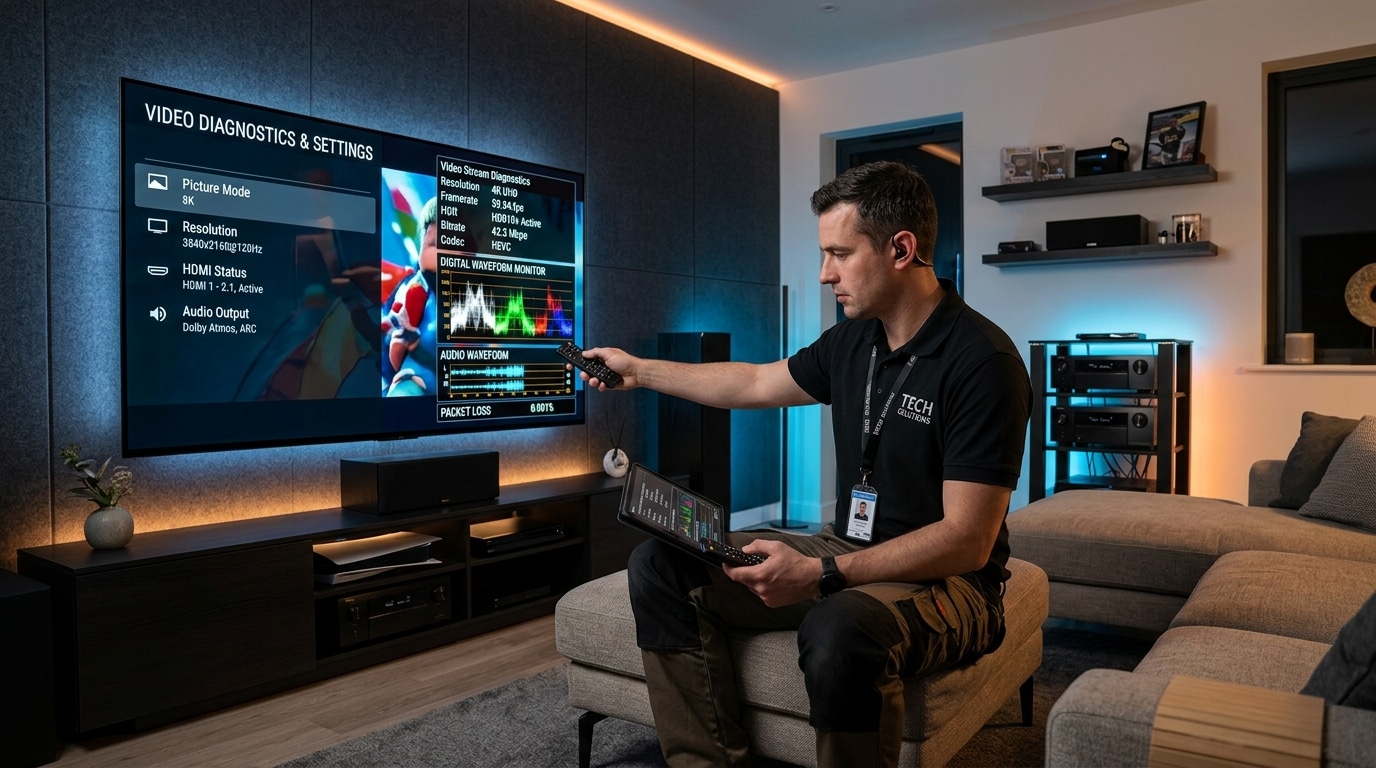
Few technical glitches in digital entertainment are as perplexing and frustrating as the "Black Screen with Working Audio" error. You sit down to watch a live Premier League match, an evening news bulletin, or an on-demand movie. You select the channel, and immediately the crystal-clear commentary, stadium crowd noise, or soundtrack fills your living room speakers—yet your television display remains an unbroken void of total blackness.
Because the audio is playing seamlessly without stutter, most viewers immediately conclude that their internet connection is working fine and assume their television screen or their IPTV provider's stream is permanently broken.
In 99% of cases, neither is true. The stream is arriving at your device intact, and your television panel is functioning properly. Instead, your streaming hardware is experiencing a video decoding failure, media container mismatch, or HDMI handshake breakdown.
In this comprehensive, step-by-step master diagnostic guide, we demystify the exact technical reasons why IPTV audio plays while the screen stays black in 2026. We explore the inner workings of hardware versus software decoders, demultiplexing pipelines, H.264 versus HEVC 10-bit codec profiles, HDCP digital handshake barriers, and provide actionable, step-by-step solutions for TiviMate, IPTV Smarters Pro, Apple TV, Amazon Firestick, and Smart TVs. Throughout this guide, we also demonstrate how enterprise server infrastructure at IPTV FIESTA employs multi-codec stream normalization to prevent black screen errors before they ever reach your screen.
Experience IPTV FIESTA UK
Upgrade your entertainment with ultra-stable, anti-freeze streaming. Access Sky Sports, TNT Sports, BBC, ITV, and UK 4K VOD on all your favorite devices.
Demystifying the Glitch: How Digital Television Streams Are Built
To understand why the video fails while the audio succeeds, you must understand how digital television broadcasts are packaged and decoded inside modern media devices:
                  [Incoming MPEG-TS / HLS Digital Stream]
                                     │
                                     ▼
                        [Demuxer / Splitter Engine]
                                     │
                     ┌───────────────┴───────────────┐
                     ▼                               ▼
          [Audio Elementary Stream]       [Video Elementary Stream]
             (AAC / AC3 / MP3)              (H.264 / H.265 / AV1)
                     │                               │
                     ▼                               ▼
          [Audio DSP / CPU Core]          [Hardware GPU Video Decoder]
          Low bandwidth (128-384 Kbps)     High bandwidth (8-30 Mbps)
          Simple mathematical decode       Complex 4K 60 FPS matrix decode
                     │                               │
                     ▼                               ▼
             [Soundbar / TV]                 [TV Display Panel]
             [AUDIO SUCCEEDS!]               [DECODER CRASHES -> BLACK SCREEN]
The Role of the Demultiplexer (Demuxer)
When an IPTV stream arrives at your Firestick, Apple TV, or Smart TV, it is not a single fused video file. It arrives as a multiplexed container—typically an MPEG Transport Stream (.ts) or an HTTP Live Streaming segment (.m3u8).
Inside this single container are separate, parallel data tracks:
- An Audio Elementary Stream (encoded in AAC, Dolby Digital AC3, or MP3).
- A Video Elementary Stream (encoded in H.264 AVC, H.265 HEVC, or AV1).
- Metadata tracks (teletext, subtitles, and electronic guide data).
Your player application runs a software component called a Demuxer. The demuxer splits the incoming stream into its separate audio and video components and directs them to their respective decoding engines.
Why Audio Rarely Fails:
Digital audio is computationally lightweight. A pristine 5.1 surround sound track requires a minuscule bandwidth of only 192 to 384 Kilobits per second (Kbps). Any modern multi-core processor can decode audio effortlessly in software without breaking a sweat.
Why Video Decoders Choke:
Video decoding is an immense mathematical challenge. A live 4K 60 FPS sports broadcast contains 3,840 by 2,160 pixels refreshed 60 times every single second—over 497 million pixels per second!
To display this video smoothly without exhausting the central CPU, streaming devices rely on specialized dedicated silicon chips called Hardware Video Decoders (Hardware Accelerated GPUs).
If the incoming video stream utilizes a color profile, compression level, resolution, or container format that the hardware video decoder does not recognize or fails to allocate memory for, the video pipeline silently crashes or returns empty frames—leaving you with a pitch-black screen while the unencumbered audio pipeline continues to sing merrily along.
The 6 Primary Root Causes of IPTV Black Screen Errors
Whenever you encounter a black screen with audio, the issue can be traced directly to one of six technical failure points:
1. Hardware (HW) vs. Software (SW) Decoder Conflicts
Most modern IPTV players (including TiviMate, Smarters, and XCIPTV) default to Hardware Decoding (HW). Hardware decoding leverages your device's physical graphics chipset (e.g., Mali GPU or Apple Silicon) for maximum energy efficiency and 60 FPS fluidity.
- The Failure: If the provider transmits a raw broadcast stream with non-standard header flags, or an older interlaced format (such as 1080i 50Hz), the device's hardware decoder may crash upon stream initialisation. The player's underlying engine (such as Google's ExoPlayer) continues running the audio track while waiting indefinitely for the video pipeline to respond.
2. HEVC 10-Bit Color Profile Incompatibility
The modern broadcast standard for 4K Ultra HD and high-framerate sports is H.265 (HEVC) Main 10 (a 10-bit color profile delivering over one billion distinct shades of color).
- The Failure: If you attempt to play a 10-bit HEVC stream on an older streaming box (such as a 1st Gen Fire TV Stick, an older budget Android box, or an entry-level smart TV manufactured before 2018), the hardware lacks 10-bit HEVC decoding silicon. The player decodes the standard AAC audio effortlessly, but the video processor cannot render 10-bit YUV color spaces, resulting in blackness.
3. HDCP 2.2 Copy Protection & HDMI Handshake Drops
High-bandwidth Digital Content Protection (HDCP) is an encryption protocol embedded in HDMI cables, AV receivers, and 4K displays to prevent unauthorized recording.
- The Failure: When you switch to an encrypted or 4K HDR channel, your streaming box and your 4K television must perform an instantaneous cryptographic handshake over the HDMI cable. If your HDMI cable has deteriorated, if you are using an older HDMI 1.4 port, or if your soundbar passes through audio but fails video HDCP 2.2 verification, your television panel will cut the video signal for copyright compliance while routing the audio through eARC!
4. Container Format Incompatibility (MPEG-TS vs. HLS)
Different media engines handle digital containers differently:
- Older Android media frameworks handle raw MPEG-TS (.ts) feeds effortlessly, but choke on certain HLS (.m3u8) variant playlists.
- Conversely, Apple's native tvOS AVPlayer engine prefers HLS, and frequently displays a black screen when presented with raw, un-packetized MPEG-TS feeds containing non-standard audio headers.
5. Display Resolution & Refresh Rate Negotiation Failure
If you have your streaming device configured to "Match Original Frame Rate" or automatic resolution switching:
- When switching from a 1080p 60Hz channel to an overseas 50Hz or 4K broadcast, your television screen must physically re-synchronize its clock frequency.
- In some television panels (particularly older Philips, Hisense, or budget Samsung models), the HDMI controller fails to renegotiate the video clock, leaving the display backlight illuminated but completely black.
6. App Cache Saturation & GPU Memory Leaks
Streaming applications consume significant graphics memory (VRAM) to buffer uncompressed video frames. If your device has been running for weeks without a reboot, lingering background tasks can exhaust GPU buffers. The app runs out of memory to create the video surface, causing an instant black screen.
Step-by-Step Diagnostic Matrix: Root Causes & Instant Fixes
Use this rapid diagnostic reference table to identify your issue and jump straight to the solution:
| Symptom / Behavior | Most Probable Cause | Instant Solution |
|---|---|---|
| Audio plays, screen completely black on one specific channel | Codec or container format issue on that specific feed | Switch player video decoder from HW to SW, or test backup channel feed |
| Audio plays, screen black on ALL channels | App video surface crash or GPU memory exhaustion | Force Stop app, Clear Cache, and fully restart the streaming box |
| Screen goes black with audio only on 4K sports channels | Device lacks 10-bit HEVC decoder, or HDMI port lacks HDCP 2.2 | Switch to the 1080p 50FPS feed, or connect to an HDMI 2.0/2.1 port |
| Brief black screen (1-2 seconds) with audio, then video appears | Normal HDMI Frame Rate Matching negotiation (50Hz/60Hz) | Normal behavior; upgrade to certified 48Gbps HDMI 2.1 cable |
| Audio plays, screen is black, but channel guide (EPG) overlay is visible | Video decoder initialization failure inside player | Change internal player engine (e.g., from ExoPlayer to VLC Core) |
| Screen black with audio after waking device from sleep | HDMI handshake dropped during power transition | Power-cycle television and receiver while leaving streaming stick on |
How to Fix Black Screen with Audio in TiviMate IPTV Player
Because TiviMate is the most widely used IPTV player across the UK, let us examine the exact settings to resolve video display failures:
[TiviMate Player Menu] ──► Settings ──► Playback
                                            │
               ┌────────────────────────────┼────────────────────────────┐
               ▼                            ▼                            ▼
      [Video Decoder: SW]         [Audio Decoder: HW]          [Auto Frame Rate: OFF]
     Forces CPU video decode       Keeps pristine sound        Prevents TV HDMI blackouts
Method 1: Switch Video Decoder from Hardware to Software
- Launch TiviMate.
- Press the Left Arrow on your remote to open the main menu sidebar, and click Settings (Gear Icon).
- Select Playback.
- Scroll down to Video Decoder.
- By default, this is set to Hardware. Change it to Software.
- Why this works: Software decoding commands your device's central CPU cores to render the video frame by frame using internal FFmpeg libraries, bypassing the finicky hardware GPU decoders completely.
- Return to the problematic channel. The video will now render immediately!
Method 2: Launch with an External Video Player (VLC / Just Player)
If a particular channel or on-demand 4K movie refuses to render inside TiviMate's native ExoPlayer engine:
- Go to TiviMate Settings > Playback.
- Scroll to the bottom and toggle Use External Player to "YES".
- When you open a channel, Fire OS will prompt you to choose an external video player.
- Select VLC for Android or Just Player (both are free, open-source players equipped with exhaustive universal codec libraries).
- VLC will parse the stream and display the video flawlessly.
Method 3: Change Stream Format (MPEG-TS vs. HLS)
- Go to Settings > Playlists > [Your Playlist Name].
- Select Xtream Codes Parameters (or Stream Format).
- Switch Output Format from MPEG-TS to HLS (m3u8).
- Save and restart the stream. Many modern smart TVs decode chunk-based HLS video feeds significantly better than continuous transport streams.
How to Fix Black Screen in IPTV Smarters Pro
If you use IPTV Smarters Pro on Firestick, Android, or Smart TV, follow this troubleshooting sequence:
[IPTV Smarters Dashboard] ──► Settings (Top Right Gear)
                                     │
         ┌───────────────────────────┴───────────────────────────┐
         ▼                                                       ▼
  [Player Selection]                                    [Stream Format]
  Change from "Built-in"                                Switch between
  to "VLC Player" Core                                  MPEG-TS and HLS
Step 1: Switch the Internal Player Engine
- Open IPTV Smarters Pro.
- Click the Settings (Gear Icon) in the top right corner of the home dashboard.
- Select Player Selection.
- Click Add Player. If you have VLC Player or MX Player installed on your device, Smarters will detect them.
- Under "Live TV", click on the current player (Built-in) and change it to VLC Player.
- Click Save.
- Result: Smarters will now route all live stream rendering through the ultra-resilient VLC engine, eliminating black screens across all channels.
Step 2: Clear Application Cache on Fire OS / Android
- Exit the IPTV Smarters app.
- Go to your Firestick or Android TV Settings > Applications > Manage Installed Applications.
- Select IPTV Smarters Pro.
- Click Force Stop.
- Click Clear Cache (Important: Do not click Clear Data, or you will have to re-enter your username and password).
- Re-launch Smarters. The cleared GPU memory buffers will allow the video renderer to initialize cleanly.
How to Fix Black Screen on Apple TV (iPlayTV & IPTVX)
Apple devices enforce strict video playback rules via Apple's native AVPlayer framework. If an IPTV broadcast does not strictly conform to Apple's container standards, AVPlayer will output audio but refuse to render video:
1. In iPlayTV: Switch to the VLC Player Core
- Open iPlayTV on your Apple TV.
- Go to Settings > Player Options.
- Under Video Engine, change the engine from Apple AVPlayer to VLC Core.
- Restart your channel. VLC on tvOS can decode raw transport streams, 50 FPS interlaced feeds, and unusual audio codecs without blacking out.
2. Disable "Match Dynamic Range" Temporarily
If you experience a black screen when switching to 4K HDR channels:
- Open Apple TV Settings > Video and Audio > Match Content.
- Turn Match Dynamic Range to OFF (while leaving Match Frame Rate set to ON).
- If your television HDMI controller was getting stuck in an HDR negotiation loop, turning off dynamic range matching forces the Apple TV to tone-map the video to SDR, restoring instant picture.
HDMI Handshake & HDCP Troubleshooting on 4K TVs
If your black screen issues occur primarily on modern 4K televisions, soundbars, or AV receivers, the problem is frequently physical:
[Streaming Device (4K 60Hz)]
         │
    [HDMI 2.1 Cable]  <─── Must be 18 Gbps or 48 Gbps Certified!
         │
         ▼
[AV Receiver / Soundbar (HDMI IN / Passthrough)]
         │
    [HDMI 2.1 Cable (eARC)]
         │
         ▼
[4K HDR Television Panel (HDMI Port 1 or 2 - Enhanced Format)]
1. Enable "Enhanced HDMI / HDMI Ultra HD Deep Color" on Your TV
By default, many 4K televisions ship with their physical HDMI ports set to "Standard HDMI 1.4" compatibility mode to support vintage DVD players. In Standard mode, the port does not have sufficient bandwidth to accept 4K 60 FPS video signals:
- LG TVs: Go to Settings > General > Devices > HDMI Settings > HDMI Deep Color, and set it to 4K.
- Samsung TVs: Go to Settings > General > External Device Manager > Input Signal Plus, and toggle it ON for all HDMI inputs.
- Sony TVs: Go to Settings > Channels & Inputs > External Inputs > HDMI Signal Format, and change from Standard to Enhanced Format (Dolby Vision).
2. Replace Old HDMI Cables
If you are using an old, unbranded HDMI cable that was bundled with a game console ten years ago, it likely lacks the 18 Gbps bandwidth required for 4K 60 FPS HDR. Upgrade to a certified High-Speed 48 Gbps HDMI 2.1 cable.
3. The Power-Cycle Handshake Reset
To force your devices to negotiate a brand new HDCP encryption handshake:
- Turn off your television, soundbar, and streaming box.
- Unplug all three devices from the mains electrical wall sockets.
- Disconnect and re-seat both ends of every HDMI cable firmly.
- Wait 60 seconds.
- Plug the television into wall power first and turn it on.
- Turn on your soundbar.
- Finally, plug in your streaming box. This boot sequence ensures your television panel is awake and ready to complete the HDCP video handshake immediately.
Digital Video Codecs & Chroma Subsampling: Why Profiles Matter
To truly master IPTV troubleshooting, one must understand that digital video is not merely defined by "MP4" or "MKV". Inside the stream container, the video elementary stream adheres to specific profiles, color depths, and chroma subsampling ratios:
┌─────────────────────────────────────────────────────────────┐
│             VIDEO CODEC & PROFILE COMPATIBILITY             │
├──────────────────────┬──────────────────────────────────────┤
│ Video Codec          │ Profile & Color Characteristics      │
├──────────────────────┼──────────────────────────────────────┤
│ H.264 (AVC)          │ Baseline, Main, High Profile (8-bit) │
│                      │ Universal hardware support.          │
├──────────────────────┼──────────────────────────────────────┤
│ H.265 (HEVC) Main    │ 8-Bit Color (16.7 million colors).   │
│                      │ Standard for early 4K streams.       │
├──────────────────────┼──────────────────────────────────────┤
│ H.265 (HEVC) Main 10 │ 10-Bit Color (1.07 billion colors).  │
│                      │ HDR10 / HLG. Chokes on pre-2018 TVs. │
├──────────────────────┼──────────────────────────────────────┤
│ H.264 / HEVC 4:2:2   │ Professional studio satellite feed.  │
│                      │ Instant black screen on all sticks!  │
├──────────────────────┼──────────────────────────────────────┤
│ AV1 (AOMedia Video 1)│ Modern open codec. Requires modern   │
│                      │ Firestick 4K Max 2nd Gen or Apple TV.│
└──────────────────────┴──────────────────────────────────────┘
The Studio Satellite Feed Trap: 4:2:2 Chroma Subsampling
In broadcast engineering, satellite downlinks between sports stadiums and television studios often use 4:2:2 Chroma Subsampling to preserve uncompressed color fidelity for live editing.
- Consumer streaming hardware (such as Amazon Firesticks, Apple TV, smart TVs, and Google Chromecasts) is engineered strictly with 4:2:0 Chroma Subsampling decoders.
- If an amateur IPTV reseller captures a raw 4:2:2 stadium satellite feed and passes it directly to subscribers without transcoding, consumer hardware decoders cannot allocate the necessary color matrix. The audio plays clearly, but the video output displays an absolute black screen!
- At IPTV FIESTA, every incoming broadcast feed is checked and transcoded to broadcast-standard 4:2:0 before transmission, guaranteeing 100% display compatibility across all consumer hardware.
Under the Hood: Android MediaCodec & SurfaceView Failures
For tech-minded enthusiasts streaming on Android TV or Fire OS devices, understanding what occurs at the operating system driver level explains why switching to software decoding or VLC resolves the issue:
[Android Video Rendering Pipeline]
  ├── MediaCodec API (Communicates with GPU Driver)
  │     ├── Allocates Hardware Video Decoders (e.g., OMX.MTK.VIDEO.DECODER.HEVC)
  │     └── Directs Decoded Frames to SurfaceView (TV Screen Canvas)
  ▼
[The Crash Point]
  If stream bitrate spikes or memory buffers exhaust:
  MediaCodec throws: `MediaCodec.CryptoException` or `SurfaceTextureBufferAllocationFailure`
  Result: SurfaceView remains transparent (Black), audio pipeline remains unblocked!
When TiviMate or Smarters uses the default Android MediaCodec framework, it requests an exclusive hardware video decoder session from the operating system.
If you switch channels rapidly or if a stream's bitrate spikes dramatically:
- The driver's hardware decoder buffer experiences an underrun.
- The operating system's
SurfaceVieworTextureViewgraphics canvas fails to attach to the video pipeline. - The player app does not crash completely; it simply displays nothing on the video surface.
- When you switch Video Decoder to Software (SW), the player stops requesting MediaCodec GPU sessions. Instead, it compiles software-based FFmpeg binaries directly within the application sandbox. The CPU takes over pixel generation, rendering the image onto the screen regardless of GPU driver glitches.
Interlacing Failures in UK Broadcast Feeds (1080i 50Hz)
A large percentage of traditional television broadcasts in the United Kingdom (including classic BBC, ITV, and satellite feeds) originate in 1080i (Interlaced) at 50 Hz, rather than 1080p (Progressive).
What is Interlacing?
- Progressive video (1080p) draws all 1,080 horizontal lines of an image simultaneously in every single frame.
- Interlaced video (1080i) draws only the odd lines in frame 1, and the even lines in frame 2.
- To display 1080i on a modern 4K progressive television panel, your streaming player must run a digital algorithm called a Deinterlacer (e.g., YADIF, Bob, or Linear Deinterlacing) to fuse the two alternating fields together into a full 50 FPS progressive frame.
How Deinterlacer Handshake Failures Cause Black Screens:
- Many lightweight streaming apps and budget smart TV processors do not have dedicated hardware deinterlacers.
- When presented with an interlaced 1080i stream, the decoder fails to synthesize the alternating scan lines into a progressive frame buffer.
- The video decoder hangs, resulting in a black screen with audio.
- The Solution: In player settings (such as TiviMate or VLC), navigate to Deinterlacing and toggle it to "Hardware" or "YADIF 2x". Alternatively, choose the 1080p progressive feed provided in your IPTV FIESTA playlist.
Device-Specific Advanced Black Screen Fixes
If you stream on specialized hardware, use these platform-specific adjustments:
1. Nvidia Shield TV Pro: AI-Enhanced Upscaling Conflicts
The Nvidia Shield TV Pro features powerful AI-Enhanced upscaling. However, on certain high-framerate 50 FPS or interlaced feeds:
- The Shield's AI processor can crash when trying to upscale unsupported frame dimensions, causing the screen to go black while audio plays.
- The Fix: Press the Settings button on your Shield remote, select AI Upscaling, and change it from AI-Enhanced to Basic or Enhanced.
2. Formuler Z11 Pro Max (MYTVOnline3): Audio Sync & Buffer Setting
- Open MYTVOnline3.
- Navigate to Settings > Player Options.
- If a channel exhibits a black screen with audio, change Video Output Engine from Auto to Mode 2 (ExoEngine) or Mode 3 (Alternative). Formuler's proprietary firmware includes dedicated fallback decoders specifically designed for legacy broadcast containers.
3. Windows PC / Mac IPTV Players (VLC, IPTV Smarters Desktop)
- On Windows 11: In VLC, navigate to Tools > Preferences > Input / Codecs. Set Hardware-accelerated decoding to Direct3D11 Video Acceleration or switch to Disable.
- On macOS: Go to Preferences > Input / Codecs and ensure Video Toolbox hardware acceleration is toggled on to leverage Apple Silicon hardware media engines.
How IPTV FIESTA Server Normalization Prevents Black Screens
While local settings can fix client-side quirks, the ultimate prevention of black screen errors begins at the broadcast server level.
Many low-tier IPTV providers simply restream raw, non-standard satellite downlinks across their servers without inspecting them. If a satellite transponder transmits a non-standard video packet header or an unannounced codec shift, thousands of subscribers' streaming sticks instantly crash to a black screen.
At IPTV FIESTA, our engineering architecture employs Real-Time Stream Normalization:
[Raw Broadcast Satellite Feeds]
               │
               ▼
[IPTV FIESTA Transcoding Cluster]
  ├── Strip Non-Standard Stream Headers
  ├── Normalize Frame Rates (Locked 50/60 FPS)
  ├── Dual Profile Encoding:
  │     ├── Profile A: 4K UHD HEVC Main 10 (For 4K TVs)
  │     └── Profile B: 1080p FHD H.264 Fallback (For Older Sticks)
  └── Standardized MPEG-TS & HLS Containers
               │
               ▼
[End User Device: 100% Picture & Audio Success!]
- Dual Profile Streams: For all flagship sports and entertainment channels, we broadcast both pristine 4K HEVC feeds and dedicated 1080p H.264 fallback feeds. If you own an older streaming stick that cannot render 10-bit HEVC, you can simply select the FHD feed for instantaneous, flawless video!
- Container Sanitation: Our servers sanitize container headers, ensuring 100% compliance with Android MediaCodec, Apple AVPlayer, and ExoPlayer standards.
Systematic Diagnostic Flowchart: 60-Second Troubleshooting Tree
Work through this fast diagnostic tree whenever you encounter a black screen with audio:
[AUDIO PLAYS BUT SCREEN IS BLACK]
               │
               ▼
   Is the EPG guide overlay visible?
      ├── YES ──► Video decoder crash.
      │           Action: In player settings, switch Video Decoder to "Software (SW)",
      │           or change active player engine to VLC.
      │
      └── NO  ──► Total video pipeline or HDMI failure.
                  Action: Check HDMI cable, enable "Enhanced HDMI" on TV,
                  and restart streaming device from mains power.
Frequently Asked Questions
Conclusion: Enjoy Flawless Video & Audio with IPTV FIESTA UK
A black screen with working audio is a frustrating technical hiccup, but as demonstrated in this guide, it is almost always resolved in seconds by switching your player's video decoder, choosing VLC as an external engine, or verifying your HDMI settings.
When you partner with a premium provider like IPTV FIESTA, stream compatibility is prioritized from the start. Our multi-codec server infrastructure and dual-feed architecture ensure that whether you are watching on an Apple TV 4K, Amazon Firestick, or Android TV, your screen displays reference-grade video paired with crystal-clear audio every single time.
- Explore our flexible, contract-free UK subscription packages.
- Browse our exhaustive channels lineup covering 4K sports, cinema, and international feeds.
- Check out our detailed device installation guides.
- Reach out to our 24/7 technical support team on WhatsApp to request your free 24-hour test trial and stream with 100% stability today!