Best IPTV Players in 2026: Top Streaming Apps for Smart TVs, Firestick, and Android
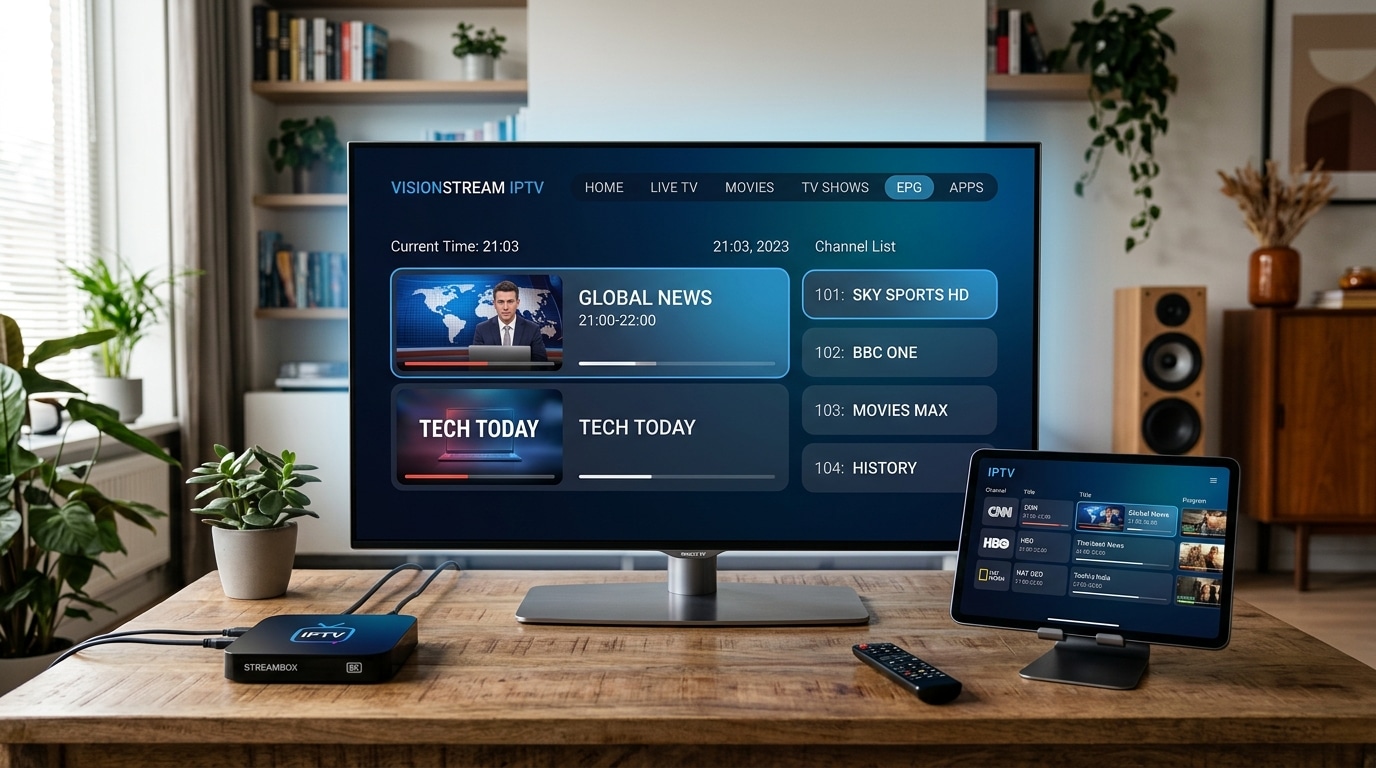
In the world of internet protocol television, few things affect your everyday viewing experience more than the software application you use to navigate your channels. While your service provider is responsible for server uptime, broadcast bitrates, and stream stability, your IPTV player governs everything you see and touch: user interface responsiveness, Electronic Program Guide (EPG) layout, channel zapping speed, audio-video decoding, subtitle handling, and multi-screen viewing.
The exact same high-definition IPTV FIESTA subscription can feel wildly different depending on the media player you choose. Pair a premium playlist with an obsolete, poorly coded application, and you will experience slow navigation, missing channel logos, audio desynchronization, and frequent crashes. Pair that same subscription with an enterprise-grade player like TiviMate or IPTV Smarters Pro, and your home television transforms into a polished, responsive broadcast center that rivals or exceeds any traditional satellite set-top box.
In this comprehensive guide, we review, benchmark, and compare the best IPTV players of 2026. We examine their specific strengths and weaknesses across Amazon Fire TV, Android TV, Google TV, Samsung Tizen, LG webOS, Apple tvOS, and Windows/Mac platforms, providing you with actionable guidance to choose the ideal software for your household.
Experience IPTV FIESTA UK
Upgrade your entertainment with ultra-stable, anti-freeze streaming. Access Sky Sports, TNT Sports, BBC, ITV, and UK 4K VOD on all your favorite devices.
Understanding the Difference: IPTV Service Provider vs. IPTV Player Application
Before diving into individual software reviews, it is vital to understand a fundamental distinction that often confuses newcomers to cord-cutting:
- The IPTV Service Provider (The Content Streamer): This is the service—such as IPTV FIESTA—that operates server datacentres, encodes television broadcasts, and delivers your live channel streams, movie libraries, and EPG schedules via M3U links or Xtream Codes API credentials. A provider gives you access to the content.
- The IPTV Player Application (The Media Engine): This is the software program installed on your streaming stick, Smart TV, or mobile device. By itself, an IPTV player contains zero channels, movies, or broadcasts. It acts as an empty media shell. You input your provider's credentials into the player, and the player decodes and renders the video feeds on your screen.
Understanding this division is liberating. It means you are never locked into an ugly or frustrating interface. If you dislike how a particular app renders your electronic guide or organizes your favorites, you can simply install a different player, enter your Xtream Codes credentials, and immediately enjoy a completely refreshed interface without altering your underlying television subscription.
Core Criteria for Evaluating an IPTV Player in 2026
When testing and ranking IPTV media applications, we evaluate eight critical technical pillars:
- User Interface (UI) & Remote Control Navigation: Does the app feel modern, intuitive, and responsive when operated using a standard television directional pad (D-pad)? Does it provide fluid scrolling without stuttering?
- Electronic Program Guide (EPG) Engine: How efficiently does the software parse and render complex XMLTV guides? Does it support multiple EPG sources, catch-up timelines, and automatic background updates?
- Audio & Video Decoder Flexibility: Can the app toggle between native Hardware Decoding (MediaCodec/ExoPlayer) and Software Decoding (VLC, IJK)? This flexibility is crucial for resolving black screens or audio sync issues.
- Channel Switching Speed (Zapping Latency): How quickly does the player initialize a new stream when flipping channels? Top players buffer and display live video in under 1.5 seconds. (See our analysis on fixing slow IPTV channel switching).
- Multi-Screen & Picture-in-Picture (PiP) Capabilities: Can the app display 2, 3, or 4 live sports matches simultaneously on a single screen?
- Playlist & Protocol Support: Does the software support Xtream Codes API, M3U playlist URLs, and Stalker portals? Can it manage multiple simultaneous playlists from different providers?
- Recording & Time-Shifting: Does the app allow scheduling local PVR recordings to external USB flash drives or network-attached storage (NAS)?
- Stability & Resource Efficiency: Does the player run smoothly on budget devices like the Amazon Fire TV Stick Lite without crashing or running out of RAM?
Let us now examine the leading IPTV applications available today in complete technical depth.
1. TiviMate IPTV Player (The Gold Standard for Android TV & Firestick)
For anyone streaming on an Android-based platform—including Amazon Fire TV Sticks, Google TV with Chromecast, NVIDIA Shield TV, or Android TV sets—TiviMate is widely recognized as the undisputed champion of IPTV players.
Created by developer Armobsoft, TiviMate was engineered from the ground up specifically for large-screen televisions operated by a remote control. It deliberately avoids touching mobile touchscreen conventions, resulting in an interface that feels identical to a premium commercial satellite or cable box.
Key Features & Technical Highlights:
- Reference-Grade EPG Interface: TiviMate features the cleanest, smoothest TV guide in the industry. Scrolling horizontally through days of upcoming programming or vertically through hundreds of channels is buttery smooth at 60 FPS.
- Multi-View Capability: One of TiviMate's most celebrated features for sports fans. You can split your television screen into 2, 3, 4, or even 9 simultaneous live broadcasts. You can watch multiple Premier League football games, Formula 1 onboard cameras, and tennis matches side by side, cycling the active audio track with a single click of your remote.
- Granular Video & Audio Controls: Toggle between Hardware and Software video decoders per channel group. Customize stream buffer sizes (None, Small, Medium, Large) to balance instantaneous channel switching against network jitter.
- Catch-Up TV Integration: If your subscription supports catch-up, TiviMate places a small clock icon next to previous programs. Clicking any aired show rewinds and plays the broadcast instantly.
- Scheduled Local Recording (PVR): Set timers to record live sporting fixtures or movies directly to your device's internal storage, an attached USB drive, or a local SMB network shared folder.
Step-by-Step TiviMate Configuration Walkthrough:
- Download and Install: On an Amazon Firestick or Android TV box, install TiviMate via the Google Play Store or sideload it using the Downloader app (enter quick code or direct APK link).
- Add Your Playlist: Launch TiviMate and click Add Playlist. We strongly advise selecting Xtream Codes login rather than typing an enormous M3U link.
- Input Connection Parameters:
- Enter your Provider Server URL (e.g.,
http://iptvfiesta.stream:8080). - Enter your authorized Username and Password.
- Check the box labeled Include VOD if you wish to import movies and series.
- Enter your Provider Server URL (e.g.,
- Sync EPG Guide: TiviMate will automatically fetch the electronic program guide linked to your Xtream Codes profile. Once imported, your live TV guide will display program summaries, episode numbers, and channel logos.
- Optimize Playback Settings: Open Settings > Playback:
- Set Buffer Size to Small or Medium.
- Set Audio Decoder and Video Decoder to Hardware.
- Enable Auto Frame Rate (AFR) so your television dynamically synchronizes to 50 Hz or 60 Hz broadcasts without motion judder.
Limitations:
- Android TV Only: TiviMate is exclusively built for Android TV OS and Fire OS. There is no official native version for Apple tvOS, Samsung Tizen, LG webOS, or iOS.
- Premium License Required for Advanced Features: While a basic free version exists, essential features like multi-view, scheduled recording, and custom channel reordering require TiviMate Premium (available as an annual subscription or one-time lifetime license).
2. IPTV Smarters Pro (The Universal Cross-Platform Workhorse)
If your household utilizes a diverse array of hardware—such as an Amazon Firestick in the lounge, an LG Smart TV in the kitchen, an iPad for travel, and a Windows PC in the home office—IPTV Smarters Pro is the most practical universal solution.
Developed by WHMCS Smarters, this application is available across virtually every operating system in existence, providing a unified, familiar experience for all family members.
Key Features & Technical Highlights:
- Universal Operating System Support: Native applications exist for Android, Fire OS, iOS, iPadOS, macOS, Windows, Samsung Tizen OS, and LG webOS.
- Intuitive Categorized Dashboard: When logging in via Xtream Codes API, Smarters Pro automatically segregates your content into four distinct, colorful tiles: Live TV, Movies, Series, and Catch-up.
- Built-in Master Search: Search across your provider's entire library of live channels and VOD titles simultaneously. Typing "Premier League" or "Oppenheimer" instantly surfaces all matching live feeds and movies.
- Multi-Screen Mode: Supports 2-screen and 4-screen split layouts on compatible Android and Fire TV devices.
- Parental Control Pin Protection: Lock adult categories, international groups, or violent cinema folders behind a 4-digit security code.
- External Player Support: If a specific high-bitrate video file struggles to play within the default player, Smarters Pro allows you to hand off playback to external engines like VLC Player or MX Player with a single click.
Step-by-Step IPTV Smarters Pro Setup Walkthrough:
- Install the App: Search for "IPTV Smarters Pro" directly on the Amazon Appstore, Google Play Store, Apple App Store, or LG Content Store.
- Select Login Method: On the welcome splash screen, select Login with Xtream Codes API.
- Fill Credentials:
- Any Name: Type a friendly profile name (e.g., "IPTV FIESTA UK").
- Username: Enter your assigned subscription username.
- Password: Enter your subscription password.
- Server URL: Type the full server host and port provided in your welcome message.
- Click Add User: The app will connect to the server and begin downloading your channel categories, movie posters, and TV show seasons.
- Tune Advanced Settings: Navigate to Settings > Player Selection and choose your preferred internal media engine (Native vs Built-in player). In Time Format, switch to 24-hour display if preferred.
Limitations:
- EPG Navigation is Less Fluid: While functional, the electronic guide grid does not match the silky 60fps horizontal scrolling performance of TiviMate.
- Interface Can Feel Crowded: The mobile-ported design contains more buttons and sub-menus, requiring slightly more clicks to reach full-screen playback.
3. IBO Player (The Best Lightweight Solution for Smart TVs)
For owners of Samsung (Tizen) and LG (webOS) Smart TVs who do not wish to connect an external streaming stick, IBO Player has emerged as the premier choice.
Many native Smart TV applications are notoriously sluggish due to the modest processor and limited RAM found inside built-in television motherboards. IBO Player is exceptionally lightweight, optimizing memory usage to deliver swift channel switching and fluid menus on built-in TV platforms.
Key Features & Technical Highlights:
- Native Smart TV App Store Availability: Downloadable directly from the official Samsung Galaxy Store and LG Content Store without sideloading or developer modes.
- Cloud-Based Web Playlist Management: Instead of struggling to type long M3U URLs or complex credentials using an awkward on-screen TV remote keyboard, IBO Player provides a device MAC address and Device Key. You simply open your web browser on a smartphone or computer, navigate to the IBO portal, and upload your playlist credentials remotely. They instantly synchronize with your TV.
- Multiple Player Engines: Incorporates VLC and ExoPlayer engines within the TV app, allowing you to bypass audio-video codec errors that frequently plague older Smart TVs.
- Speedy Channel Zapping: Loads streams quickly with minimal startup buffering.
- Subtitle & Audio Track Switching: Simple remote control shortcuts allow you to cycle through multiple audio commentary languages or toggle closed captions during live broadcasts.
Step-by-Step IBO Player Web Portal Setup Walkthrough:
- Install from Store: Open your Smart TV's app store (LG Content Store or Samsung Smart Hub), search for "IBO Player," and install the application.
- Record Device Codes: Launch IBO Player on your television. On the home screen, locate your unique Device MAC Address and Device Key.
- Open the Web Portal: On your smartphone, tablet, or laptop, navigate to
https://iboplayer.com/device/login. - Login with Device Info: Enter the MAC Address and Device Key displayed on your TV screen.
- Add Your Subscription:
- Click Add Playlist (or Add XC Playlist for Xtream Codes).
- Enter your Server URL, Username, and Password from IPTV FIESTA.
- Click Save.
- Reload Your TV App: Back on your television, press the Reload button on your remote. Your complete channel lineup, EPG, and VOD categories will populate instantly.
Limitations:
- One-Time Activation Fee: IBO Player offers a 7-day free trial, after which a modest one-time lifetime activation fee (typically around €8) is required per television device.
- Fewer Power-User Customizations: Lacks advanced recording, multi-view, and external decoder tweaking tools found on dedicated Android boxes.
4. XCIPTV Player (Modern, Polished, and Highly Customizable)
XCIPTV Player by OTTRUN is another outstanding Android-based player that has garnered millions of downloads. It is best known for its sleek, card-based interface that feels modern and visually appealing right out of the box.
Key Features & Technical Highlights:
- Stunning Visual Layout: The home screen presents trending movies, newly added series, and primary channel categories with large, vibrant artwork.
- Dual Built-in Media Players: Pre-integrated with ExoPlayer and VLC Player. You can configure the app to automatically use VLC for high-bitrate VOD movies (for superior audio track and subtitle support) while utilizing ExoPlayer for instantaneous live TV switching.
- Backup and Restore: Export your configured playlists, favorite channel orders, and interface preferences to a backup file, allowing you to replicate your setup across multiple televisions in seconds.
- Integrated Speed Test: Built-in network diagnostics allow you to test your connection speed directly to your provider's streaming servers without exiting the app.
- Built-in Recording: Allows direct recording to local storage with scheduled timers.
Step-by-Step XCIPTV Setup Walkthrough:
- Download XCIPTV: Available on Google Play Store or via Downloader for Fire TV.
- Log In: Choose Xtream Codes API login.
- Enter Credentials: Input your Server URL, Username, and Password.
- Customize the Launcher: In the settings menu, you can toggle between classic TV grid layouts or the modern Netflix-style carousel view.
- Adjust Player Stream Format: In Player Settings, set live stream format to HLS (.m3u8) or MPEG-TS (.ts) depending on which provides faster initialization on your specific home broadband.
Limitations:
- Occasional Advertisements in Free Tier: The free store version occasionally displays banner advertisements within menus (though playback remains untouched).
- EPG Requires Periodic Manual Syncing: Guide data caching can occasionally lag behind unless refreshed in the settings menu.
5. OTT Navigator IPTV (The Deeply Configurable Powerhouse)
If TiviMate is the Apple of IPTV players (refined, elegant, and streamlined), OTT Navigator is the ultimate Linux equivalent: deeply customizable, endlessly configurable, and packed with advanced diagnostic data.
Key Features & Technical Highlights:
- Unmatched Customization: Virtually every element of the screen can be customized. You can alter font sizes, adjust channel logo padding, modify transparency levels, and completely rebind every remote control button to custom shortcuts.
- Adaptive Codec & Frame Rate Switching: Features native support for auto-frame-rate (AFR) matching on supported hardware, ensuring your television automatically switches its refresh rate to 50 Hz or 60 Hz to match the incoming broadcast.
- Channel Group Filtering: Merge identical channels across multiple providers, filter out SD duplicates when HD/4K versions exist, and create dynamic smart categories based on keywords.
- Media Information Overlays: Pressing an info button reveals real-time stream technical data: incoming bitrate (Mbps), dropped frame counters, audio codec sample rates, and video resolution.
- Picture-in-Picture & Split Screen: Allows floating a miniature live TV window over other applications or splitting the screen into dual views.
Step-by-Step OTT Navigator Configuration:
- Install from Google Play Store: Install directly onto your Android TV or Firestick device.
- Configure Provider: Go to Settings > Provider > Add Provider > Xtream Codes.
- Synchronize Categories: Allow the app to pull category trees. Once loaded, go to Settings > Appearance to choose between Studio, Modern, or Compact EPG themes.
- Set Up Remote Shortcuts: Go to Settings > Remote Control and map long-press actions (e.g., long-pressing "OK" triggers instant multi-view; double-pressing "Back" returns to the last channel).
Limitations:
- Steep Learning Curve: The sheer volume of nested menus, technical switches, and configuration parameters can be overwhelming for casual, non-technical viewers.
- Visuals Can Feel Utilitarian: The default theme prioritizes information density over sleek aesthetic minimalism.
6. iPlayTV & IPTVX (The Premier Choices for Apple TV 4K)
Apple TV users operate within tvOS—a polished, sandboxed operating system that does not support Android APKs. Fortunately, the tvOS ecosystem boasts two extraordinary IPTV applications: iPlayTV and IPTVX.
iPlayTV Highlights:
- Native tvOS Design Language: Follows Apple's Human Interface Guidelines meticulously. Navigating with the Apple TV Siri Remote touch-surface is ultra-responsive.
- Multi-EPG Support: Seamlessly syncs multiple guide URLs, automatically matching channel logos and descriptions with zero configuration.
- iCloud Synchronization: Configure your playlist on your Apple TV, and it automatically synchronizes to your iPad and iPhone via your personal iCloud account.
- Smooth 4K 60FPS Playback: Takes full advantage of the Apple A15 Bionic processor to decode complex HEVC streams with zero frame drops.
IPTVX Highlights:
- Netflix-Style User Experience: IPTVX completely reimagines your IPTV playlist as a modern streaming service interface. VOD movies and series appear with animated cinematic backdrops, actor profiles, Rotten Tomatoes scores, and trailer previews.
- Dolby Vision & Spatial Audio: Fully harnesses the Apple TV 4K hardware to decode high-end audio and video formats smoothly.
- Continue Watching & Next Episode: Automatically tracks your episode progress through TV series boxsets, prompting you with a "Next Episode" button when credits roll.
7. GSE Smart IPTV & Perfect Player (Legacy Veterans)
GSE Smart IPTV:
One of the oldest and most widely recognized IPTV applications. It is cross-platform (iOS, Android, macOS, Windows) and supports a vast range of stream formats, including RTMP, RTSP, and MMS protocols. However, its user interface has not aged well; the menus feel dated compared to modern alternatives like TiviMate or Smarters Pro.
Perfect Player IPTV:
A classic Android TV application that simulates an old-school cable television converter box. It is exceptionally lightweight and runs well on ancient hardware with limited RAM, but lacks modern VOD poster walls, multi-view, and catch-up controls.
Comprehensive Comparison Matrix: Top IPTV Players of 2026
To help you decide which application best fits your streaming habits, review our side-by-side feature comparison table:
| Player Application | Primary Platforms | Free Version Available? | Multi-View Support | Xtream Codes Support | Best Suited For |
|---|---|---|---|---|---|
| TiviMate | Firestick, Android TV | Yes (Limited) / Premium Paid | Yes (Up to 9 screens) | Native | Firestick & Android TV enthusiasts seeking the absolute best EPG |
| IPTV Smarters Pro | All (Android, iOS, PC, Smart TVs) | Yes | Yes (4 screens) | Native | Multi-device households needing universal compatibility |
| IBO Player | Samsung Tizen, LG webOS, Fire TV | 7-Day Trial / One-time Fee | No | Native | Smart TV owners wanting simple, lightweight native app performance |
| XCIPTV | Android TV, Fire TV | Yes (Ad-supported) / Paid | Yes (2-4 screens) | Native | Viewers who prioritize an attractive, modern card-style dashboard |
| OTT Navigator | Android TV, Fire TV, Mobile | Yes / Premium Upgrade | Yes (PiP & Split) | Native | Advanced power users who love technical diagnostics and custom controls |
| iPlayTV | Apple TV (tvOS), iOS | Paid App Store Purchase | No | Native | Apple TV owners looking for clean, fluid Siri Remote navigation |
| IPTVX | Apple TV (tvOS), iOS | Free Trial / Subscription | Yes (PiP) | Native | Apple TV users who desire a luxurious, Netflix-style VOD presentation |
Troubleshooting Common IPTV Player Errors in 2026
Even with the best IPTV software, you may occasionally encounter error messages during playback. Here is how to diagnose and resolve the most common player issues:
1. "HttpDataSourceException" or "Connection Timeout"
- Cause: The player failed to establish a handshake with the streaming server within the allotted timeout window. This is usually caused by temporary ISP throttling, DNS resolution failure, or an incorrect server address.
- Resolution:
- Verify that your Server URL does not contain trailing spaces or typographical errors.
- Change your device's DNS servers to Cloudflare (
1.1.1.1) or Google (8.8.8.8). - Temporarily restart your broadband router to acquire a fresh public IP address.
2. "ParserException" or "Unsupported Stream Format"
- Cause: The media player's internal decoder cannot parse the audio-video container of the requested channel.
- Resolution: In your player's settings, change the Stream Format from MPEG-TS (.ts) to HLS (.m3u8), or switch the video decoder from Hardware to Software (VLC).
3. Audio Plays But Screen Remains Blank (Black Screen)
- Cause: A video decoding failure where the graphics chip cannot unpack the incoming HEVC/H.265 video stream, but the CPU handles the AAC/MP3 audio track.
- Resolution: Read our dedicated diagnostic guide on resolving IPTV black screens with audio. Switch your player's decoder to Software (VLC/IJK) or toggle your streaming stick's display output from 2160p to 1080p.
4. Electronic Program Guide (EPG) Displays "No Information"
- Cause: The XMLTV guide cache is either corrupted or outdated.
- Resolution:
- Open your player's playlist settings and click Clear EPG Cache.
- Click Update EPG Data to trigger an immediate fresh download.
- Ensure your device's date and time settings are set to Automatic (Network-provided) with the correct GMT/BST time zone.
How to Optimize Your IPTV Player for Peak Performance
Regardless of which software application you install, applying these universal technical optimizations will dramatically improve stream stability, picture quality, and zapping speed:
1. Configure Hardware Video Decoding (MediaCodec / ExoPlayer)
In your player's settings, locate the Decoder or Playback Engine menu. Most modern streaming sticks (such as the Fire TV Stick 4K Max or Apple TV 4K) contain specialized silicon chips designed to decode H.264, HEVC/H.265, and VP9 video streams instantly using minimal power.
- Set Video Decoder to Hardware (HW or MediaCodec): Hardware decoding offloads processing from the central CPU to the dedicated graphics chip, eliminating dropped frames, reducing heat, and speeding up channel switches.
- When to Use Software (SW) Decoding: Only switch to Software decoding if a specific channel displays a black screen with working audio, indicating your device's hardware chip does not recognize that particular stream's encoding container.
2. Fine-Tune Stream Buffer Sizes
Most advanced players allow you to configure the internal stream buffer:
- Small / Minimal Buffer (0 to 1 second): Delivers instantaneous channel zapping (under 1 second). Ideal if your home broadband connection is high-speed, stable, and connected via wired Ethernet or 5 GHz Wi-Fi.
- Medium Buffer (2 to 3 seconds): The recommended sweet spot for most users. Provides enough packet reserve to absorb minor network latency fluctuations without making channel changes feel sluggish.
- Large Buffer (5 to 10 seconds): Recommended only if you suffer from unstable wireless signals or frequent micro-buffering during peak evening hours.
3. Enable Auto Frame Rate (AFR) Matching
In European and UK broadcasting, live television is transmitted at 50 Hz, whereas American sports broadcast at 60 Hz, and movies run at 24 Hz (23.976 fps).
If your streaming device is permanently locked to output 60 Hz while displaying a 50 Hz UK football broadcast, your television must perform "3:2 pulldown," resulting in subtle, periodic motion judder every few seconds.
Enabling Auto Frame Rate (AFR) in players like TiviMate or Apple TV ensures your streaming box dynamically instructs your television to match the exact refresh rate of the source broadcast, producing perfectly fluid, cinema-grade motion.
4. Schedule Automatic EPG Background Updates
Set your application to refresh its electronic program guide automatically every 24 hours during off-peak hours (e.g., 4:00 AM). This guarantees that when you turn on your television in the evening, your schedules, show titles, and episode summaries are completely updated without requiring manual synchronization.
5. Organize Your Favorites and Hide Unwanted Categories
A massive playlist containing 50,000 channels can overwhelm both your device's memory and your patience. Use your player's category management tools to hide international channel folders in languages you do not speak. Create a dedicated Favorites category containing your 20 to 30 most-watched domestic channels (BBC, ITV, Sky Sports, TNT Sports). This drastically speeds up daily navigation and reduces memory load on budget streaming sticks.
Frequently Asked Questions
Conclusion: Pair the Perfect Player With Enterprise Infrastructure
Your IPTV player is the digital gateway to your home entertainment. Whether you select the unrivaled TV-first perfection of TiviMate, the cross-device convenience of IPTV Smarters Pro, the lightweight Smart TV performance of IBO Player, or the premium elegance of iPlayTV on Apple TV 4K, investing a few minutes to configure a modern media player elevates your viewing experience to extraordinary heights.
Of course, even the most sophisticated media player requires an equally dependable streaming signal to shine. Pair your chosen application with an enterprise-grade subscription from IPTV FIESTA to unlock over 50,000 live international channels, 4K sports at fluid 60 FPS, and a colossal on-demand cinema library.
Ready to transform your television?
- View our flexible, contract-free UK subscription packages.
- Check out our comprehensive device installation tutorials.
- Connect with our friendly 24/7 support team on WhatsApp to request your free 24-hour trial today!