IPTV Channel Switching Slow? Why Channels Take Too Long to Load and How to Fix It
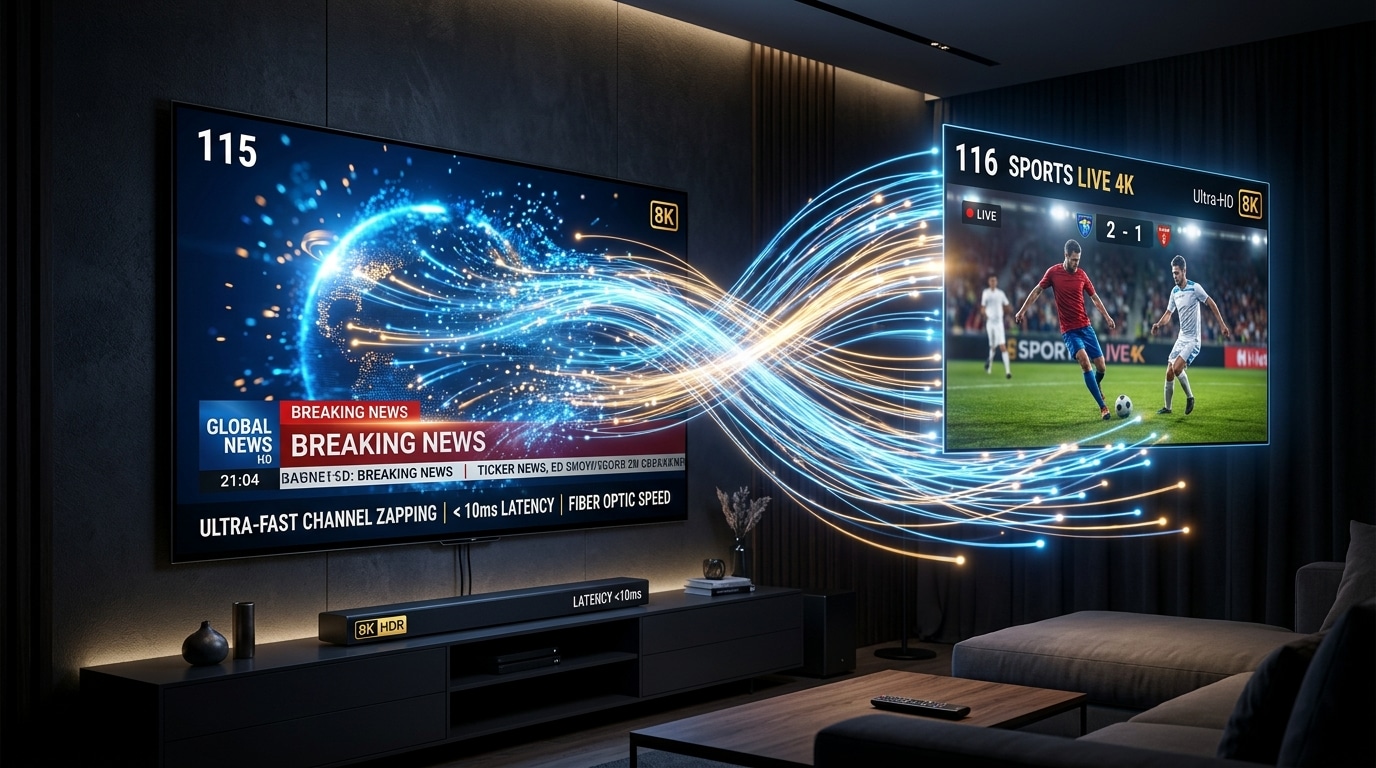
Few things ruin the comfort of traditional television viewing faster than sluggish channel switching. When you press the channel-up or channel-down button on your remote control, you expect near-instantaneous feedback. On legacy satellite dishes or cable set-top boxes, channel switching (technically known in the broadcast engineering world as zapping latency) typically occurs within 0.8 to 1.5 seconds.
In the internet protocol television (IPTV) ecosystem, however, channel switching times can vary dramatically. On an optimized setup powered by a responsive provider, channels switch in the blink of an eye—often under a single second. But on a poorly configured network or an overloaded streaming server, changing channels can become an agonizing ordeal: a black screen appears, a digital loading spinner spins for 5 to 10 seconds, audio stutters briefly, and video finally stumbles into playback.
If you find yourself waiting several seconds every time you change channels, you do not have to accept it as an unavoidable drawback of internet television. Channel zapping latency is governed by specific, measurable technical mechanisms: DNS lookup speed, TCP handshakes, TLS encryption negotiation, transport stream demuxing, video buffer pre-allocation, hardware decoder initialization, router MTU fragmentation, and keyframe (I-frame) alignment.
In this exhaustive diagnostic and optimization guide, we unpack the complete anatomy of why IPTV channels take too long to load and how to fix slow channel switching in 2026. Whether you stream on an Amazon Firestick, Apple TV 4K, Smart TV, or Android TV box, these step-by-step solutions will help you achieve instantaneous, cable-grade channel flipping.
Experience IPTV FIESTA UK
Upgrade your entertainment with ultra-stable, anti-freeze streaming. Access Sky Sports, TNT Sports, BBC, ITV, and UK 4K VOD on all your favorite devices.
What Does "Slow Channel Switching" Actually Mean?
To systematically troubleshoot and eliminate channel delay, we must establish objective technical benchmarks. When you click on a new channel in your IPTV player's electronic guide, the total duration before full-motion video and synchronized audio appear on your screen is broken down into four distinct phases:
- Network Address Resolution (DNS Lookup): Your streaming device queries a Domain Name System (DNS) server to translate your provider's server domain name (e.g.,
server.domain.com) into a physical numerical IP address. (Expected duration: 20 to 80 milliseconds). - Server Handshake & Session Establishment: Your media player opens a TCP connection with the streaming server and requests authorization via your Xtream Codes or M3U session token. (Expected duration: 100 to 300 milliseconds).
- Stream Ingestion & Keyframe (I-Frame) Hunt: Compressed digital video is not transmitted as a continuous sequence of complete pictures. Instead, it transmits one complete reference frame (called an I-frame or Keyframe) followed by seconds of fractional difference frames (P-frames and B-frames). Your player cannot display a video stream until it encounters an I-frame. If the broadcast encoder outputs an I-frame only once every 3 seconds, your player must wait in the digital queue until the next I-frame arrives. (Expected duration: 200 to 1,500 milliseconds).
- Buffer Pre-Fill & Hardware Decoder Initialization: Your media player's internal video engine allocates memory, pre-loads several hundred milliseconds of stream packets into its local cache buffer, initializes the device's hardware graphics chip, and begins rendering smooth 60 FPS video. (Expected duration: 200 to 600 milliseconds).
The Objective Performance Benchmark:
- Instant / Elite (Under 1.2 Seconds): The gold standard. Achieved by high-tier providers like IPTV FIESTA paired with hardware-accelerated players like TiviMate on modern streaming hardware.
- Acceptable (1.5 to 2.5 Seconds): Standard operational speed on typical residential Wi-Fi networks.
- Slow / Degraded (3.0 to 6.0 Seconds): Noticeable lag indicating network jitter, DNS delays, software decoding bottlenecks, or oversized buffer settings.
- Unacceptable / Critical (7.0+ Seconds): Severe server congestion, ISP traffic throttling, or app cache corruption.
Slow Channel Switching vs. IPTV Buffering: Learn the Difference
Before applying fixes, it is vital not to confuse slow channel switching with stream buffering, as they stem from different technical causes:
- Slow Channel Switching (Startup Latency): The channel takes 4 to 10 seconds of black screen or spinning circles to begin playing. However, once playback finally starts, the stream plays smoothly without freezing or stuttering. This indicates a connection handshake, DNS, or decoder initialization bottleneck.
- Stream Buffering (Mid-Stream Interruption): The channel loads quickly, but every few minutes, video freezes, stutters, loops backward, or displays a loading wheel mid-broadcast. This indicates insufficient sustained download bandwidth, high packet loss, or server capacity exhaustion during peak hours.
If your primary symptom is slow initial channel loading rather than mid-stream freezing, the step-by-step diagnostic process below will pinpoint the exact bottleneck.
The 8 Primary Causes of Slow IPTV Channel Switching
Let us examine the eight underlying technical reasons why your channels take too long to load:
1. Inefficient DNS Server Resolution
Every time you flip to a channel on a different stream server node, your device must resolve a domain name. If your streaming stick is configured to use your Internet Service Provider's default DNS servers (such as BT, Virgin Media, TalkTalk, or Sky), DNS queries can take 200 to 500 ms each. Worse, ISP DNS servers occasionally throttle rapid successive lookup requests when you flip through multiple channels in seconds.
2. High Network Latency (Ping) and Wi-Fi Jitter
Raw download speed (e.g., 200 Mbps) is virtually irrelevant during the first 500 milliseconds of stream initialization. What matters is network ping (round-trip time) and jitter. If your device is connected to a congested 2.4 GHz Wi-Fi network with 80 ms of ping and heavy packet collisions, establishing the initial TCP handshake with the streaming server takes twice as long as a stable wired Ethernet connection with 15 ms of ping.
3. Suboptimal Player Buffer Size Settings
Many IPTV users mistakenly believe that setting their player's buffer to "Very Large" or "10 Seconds" will prevent buffering. While an oversized buffer helps stabilize an erratic, weak internet connection, it directly cripples channel switching speed. If your player is configured to pre-load 5 seconds of video before displaying the first frame, your TV must sit on a black screen for at least 5 seconds while that buffer fills!
4. Software Video Decoding Instead of Hardware Acceleration
Most modern televisions and streaming sticks feature dedicated silicon hardware decoders designed to process H.264 (AVC) and H.265 (HEVC) video feeds instantly. If your player application (such as Smarters Pro or XCIPTV) is accidentally set to Software Decoding (SW), video processing is handled entirely by your device's weak central CPU. The CPU struggles to initialize the codec, creating an extra 2 to 4 seconds of delay before the first image appears.
5. Stream Transport Protocol Mismatch (HLS vs. MPEG-TS)
IPTV channels are typically delivered in one of two protocol formats:
- MPEG-TS (.ts): A continuous, raw transport stream. MPEG-TS initializes almost instantaneously because the client can latch onto the continuous packet stream immediately.
- HTTP Live Streaming / HLS (.m3u8): A chunk-based protocol where video is sliced into small sequential files (typically 2 to 6 seconds each). In poorly configured players, the player must download a complete .ts chunk and its manifest before playback begins, introducing noticeable delay.
6. Cumbersome, Massive Playlists Overloading Device RAM
If your subscription contains 60,000 live channels and 150,000 VOD movies, your IPTV player's internal SQLite database must manage millions of data rows. When you flip channels, low-powered streaming devices (such as budget Firesticks with only 1 GB of RAM) experience memory bottlenecks as the app searches through bloated playlist indexes.
7. Accumulated Application Cache & Database Fragmentation
Over weeks of daily use, IPTV players accumulate hundreds of megabytes of cached channel logos, outdated EPG program descriptions, and temporary stream segments. When this cache becomes fragmented or bloated, the application's internal database queries slow down, directly increasing channel load times.
8. Provider Server Architecture & Ingestion Overload
If a provider operates weak, over-subscribed servers without local content delivery networks, their ingestion servers take several seconds to assign your connection token and route stream packets. If channel switching is slow across every device on your network regardless of settings, the provider's server response time is the primary bottleneck.
Step-by-Step Practical Fixes: How to Achieve Instant Channel Zapping
Follow these methodical, step-by-step technical interventions to drastically cut your channel switching times down to under 1.5 seconds:
Fix 1: Switch to High-Speed Public DNS (Cloudflare or Google)
Switching away from your internet service provider's slow default DNS servers to ultra-fast public resolvers is the single quickest way to shave hundreds of milliseconds off every channel switch.
Why Cloudflare (1.1.1.1) is the Fastest:
Independent benchmarks consistently rank Cloudflare's 1.1.1.1 resolver as the fastest worldwide, with an average response time of under 14 milliseconds (compared to 40–80 ms for standard residential ISP DNS).
Step-by-Step Configuration on Amazon Firestick:
- Navigate to Settings > Network on your Fire TV home screen.
- Highlight your connected Wi-Fi network and press the Play/Pause button on your remote to view current network details. Write down your current IP Address, Subnet Mask, and Gateway (router IP).
- Press the Options button (three lines) to "Forget this network."
- Select your Wi-Fi network again, enter your Wi-Fi password, but do not click Connect yet. Click Advanced.
- Re-enter your static IP address, Gateway, and Network Prefix Length (usually
24). - In the DNS 1 field, enter:
1.1.1.1 - In the DNS 2 field, enter:
1.0.0.1(or Google DNS:8.8.8.8). - Save and connect. Your DNS lookups will now resolve in single-digit milliseconds.
Fix 2: Force Hardware (HW) Video Decoding in Your Player
Ensure your IPTV player application is utilizing your streaming stick's dedicated hardware graphics silicon rather than sluggish software CPU emulation.
In TiviMate:
- Go to Settings > Playback.
- Scroll to Audio decoder and select Hardware.
- Scroll to Video decoder and select Hardware.
- If your device supports it, verify that MediaCodec is the active hardware engine.
In IPTV Smarters Pro:
- Go to Settings > Player Selection.
- Change the default player engine from "Built-in" to "Hardware Decoder" or select VLC Player as an optimized external engine.
- In Stream Format, toggle between Default and Hardware Accelerated.
Fix 3: Optimize Your Player Buffer Size (The Zapping Sweet Spot)
Setting your buffer properly is the most direct control you have over channel switching speed.
- In TiviMate: Navigate to Settings > Playback > Buffer Size.
- If your buffer is currently set to "Large" or "Medium", change it to "Small" or "None".
- Test channel switching. If your home broadband connection is high-speed fiber (BT Full Fibre, Virgin Media Gig1, Sky Broadband), setting the buffer to "None" or "Small" will make channels snap onto your screen in under one second.
- Note: If you experience occasional stuttering during peak evening hours, increase the buffer slightly to "Small" (approx. 1 second of cache), which balances instant zapping with jitter protection.
Fix 4: Switch Stream Output Format to MPEG-TS (.ts)
Most high-grade IPTV providers allow you to request streams in either MPEG-TS (.ts) or HLS (.m3u8) containers. For pure channel switching speed, MPEG-TS is universally faster:
- Open your player's playlist settings (or Xtream Codes profile settings).
- Locate the setting labeled Stream Format or Output Container.
- Switch the format from m3u8 to ts (MPEG-TS).
- Save and reload your playlist.
- Because MPEG-TS streams contain continuous packet headers without segment playlist re-fetching, channel handshake times drop significantly.
Fix 5: Prune Unused Categories to Free Up Device RAM
A bloated playlist containing 50,000 channels forces your device to process massive database indexes every time you navigate the guide or switch channels. Pruning your active categories dramatically speeds up performance:
- Open Settings > Playlists > [Your Playlist Name] > Manage Categories.
- Uncheck or hide categories you will never watch (e.g., foreign language news channels, regional feeds from other continents, duplicate SD categories).
- Keep only primary domestic channels, sports categories, cinema groups, and your preferred VOD libraries.
- By trimming an oversized 50,000-channel playlist down to 3,000 or 5,000 active channels, your streaming stick's RAM usage drops by over 60%, allowing the processor to initialize video streams instantly.
Fix 6: Clear Application Cache and Optimize Internal Storage
Over months of streaming, temporary cache files accumulate and fragment your device storage. Clearing this cache takes 30 seconds and restores swift app navigation:
On Amazon Fire TV:
- Go to Settings > Applications > Manage Installed Applications.
- Select your IPTV player (e.g., TiviMate, Smarters Pro, or IBO Player).
- Click Clear Cache (Do NOT click "Clear Data" unless you want to re-enter your login credentials).
- Restart your Firestick by holding down the Select + Play/Pause buttons on your remote for 5 seconds.
On Android TV / Google TV:
- Go to Settings > Apps > See all apps.
- Select your IPTV application.
- Click Clear Cache, then restart your television from the system menu.
Fix 7: Connect via 5 GHz Wi-Fi or Wired Cat6 Ethernet
If your streaming device is connected to the crowded 2.4 GHz Wi-Fi frequency, channel initialization packets often experience wireless collisions and re-transmissions.
- Switch to 5 GHz Wi-Fi: Open your device network settings and connect specifically to your router's 5 GHz SSID. The 5 GHz band provides significantly higher throughput and drastically lower airtime latency.
- Use an Ethernet Adapter: For Amazon Firesticks, purchasing an official Amazon Ethernet Adapter (or an inexpensive gigabit micro-USB/USB-C Ethernet hub) allows you to connect a physical Cat6 cable directly to your router. A wired connection drops network ping to under 15 ms, completely eliminating wireless packet handshake delays.
Device-Specific Optimization Guides for Instant Zapping
Every operating system manages background processes, network adapters, and video rendering differently. Here are customized operating-system-level tweaks to squeeze maximum zapping speed out of your specific hardware:
1. Amazon Fire TV Devices (Firestick 4K, 4K Max, Cube)
Amazon's Fire OS runs multiple background services (such as automatic Appstore updates, diagnostic telemetry, and home-screen video ad autoplay) that compete for RAM and CPU cycles:
- Disable Autoplay Content: Go to Settings > Preferences > Featured Content and turn Allow Video Autoplay and Allow Audio Autoplay to OFF. This stops Amazon from buffering video ads in the background while you stream IPTV.
- Turn Off Background App Refresh & Telemetry: Go to Settings > Preferences > Privacy Settings. Turn Device Usage Data, Collect App Usage Data, and Interest-based Ads to OFF.
- Enable Developer Options & Limit Background Processes: Go to Settings > My Fire TV > Developer Options. (If hidden, click "About" and tap the device name 7 times). Under Background Process Limit, set it to At most 2 processes. This ensures your IPTV player receives 90% of the device's CPU and RAM.
2. Samsung Smart TVs (Tizen OS)
Samsung Smart TVs are susceptible to memory accumulation because pressing the power button merely puts the TV into standby sleep mode rather than executing a full system reboot:
- Execute a Cold Power Reboot: While the television is turned on, hold down the Power button on your Samsung remote for 5 to 10 seconds until the Samsung Smart TV splash screen reappears. This purges volatile RAM cache and restarts the Tizen kernel.
- Change DNS on Samsung TV: Go to Settings > General > Network > Network Status > IP Settings. Scroll to DNS Setting, change from "Get Automatically" to "Enter Manually", and set DNS Server to
1.1.1.1. - Turn Off Instant On / Auto Updates: In Settings > Support > Software Update, disable automatic updates during viewing hours to prevent background download spikes.
3. LG Smart TVs (webOS)
LG televisions running webOS maintain quick-start background sessions that can degrade over time:
- Disable Quick Start+: Go to Settings > All Settings > General > Devices > TV Management. Turn Quick Start+ to OFF. While the TV takes 3 seconds longer to boot when turned on, webOS loads a fresh operating system instance every time, preventing memory leaks in apps like IBO Player.
- Run LG Memory Cleaner: On webOS 6.0 and newer, open the Device Care / Memory Optimizer tool from the settings menu to purge dormant background applications from RAM.
4. Apple TV 4K (tvOS)
Apple TV hardware is extraordinarily fast, but display negotiation settings can cause black-screen delays when changing channels:
- Match Content Frame Rate & Dynamic Range: Go to Settings > Video and Audio > Match Content. If you find that switching channels causes a 2-second black HDMI handshake flash, it is because your TV is switching between SDR, HDR10, and Dolby Vision. Setting your Apple TV's default format to 4K SDR (60Hz) with Match Dynamic Range: ON eliminates black flashes on 99% of live standard television channels.
- Disable Background App Refresh: Go to Settings > General > Background App Refresh and disable it for non-essential apps.
Router & Broadband Engineering: Eliminating Latency at the Source
If you live in the UK and use routers supplied by major internet providers (such as the Virgin Media Hub 3/4/5, BT Smart Hub 2, or Sky Broadband Hub), local router configuration plays a massive role in packet transmission:
1. Bufferbloat & Quality of Service (QoS)
When another household member starts downloading an enormous 80 GB PlayStation game update or streaming 4K video simultaneously, standard ISP routers queue your IPTV packets behind the file download. This phenomenon is known as bufferbloat.
- The Fix: If your router supports Quality of Service (QoS), configure your streaming device's IP address as the Highest Priority Device. QoS ensures your router transmits small live IPTV video packets immediately, even when large file downloads saturate the rest of the bandwidth.
2. Router MTU (Maximum Transmission Unit) Tuning
The Maximum Transmission Unit (MTU) determines the largest data packet size your router can transmit without fragmenting the packet:
- Standard Cable/Fibre MTU (Virgin Media):
1500 - PPPoE DSL/Fibre MTU (BT Openreach, Sky, TalkTalk):
1492If your router MTU is misconfigured, every large video packet is split into two smaller packets, doubling the packet count and increasing latency during initial stream handshakes. Verify in your router's WAN configuration that your MTU matches your provider's recommended specification.
3. IPv6 Dual-Stack Routing Conflicts
Some residential broadband hubs struggle to handle rapid IPv6-to-IPv4 address lookups when routing IPTV packets. If your channel switching is sluggish, temporarily disable IPv6 in your home router settings and force your network onto pure IPv4. Many users notice an immediate 1 to 2 second improvement in channel startup times.
Technical Diagnostic Comparison: Channel Zapping Optimization
Review the comparative impact of different configuration adjustments on average channel switching times:
| Configuration Adjustment | Average Zapping Time (Before) | Average Zapping Time (After) | Why the Improvement Occurs |
|---|---|---|---|
| Switch from Default ISP DNS to Cloudflare (1.1.1.1) | 3.5 – 5.0 seconds | 2.0 – 2.5 seconds | Shaves 150–300 ms off domain resolution on every switch |
| Switch Buffer Size from "Large" to "Small / None" | 4.0 – 7.0 seconds | 1.0 – 1.5 seconds | Eliminates the mandatory wait time required to pre-fill 5s of video |
| Switch from Software (SW) to Hardware (HW) Decoder | 3.0 – 5.5 seconds | 1.2 – 1.8 seconds | Engages dedicated GPU video chip instead of struggling CPU |
| Switch Stream Format from HLS (.m3u8) to MPEG-TS (.ts) | 2.5 – 4.0 seconds | 1.0 – 1.5 seconds | Eliminates playlist chunk parsing and manifest re-fetching |
| Prune 50,000 Channels Down to 4,000 Active Favorites | 2.5 – 3.5 seconds | 1.0 – 1.4 seconds | Frees up system RAM and speeds up internal SQLite database queries |
| Switch from 2.4 GHz Wi-Fi to Wired Cat6 Ethernet | 2.5 – 4.0 seconds | 0.8 – 1.2 seconds | Eliminates wireless interference, re-transmissions, and jitter |
| Disable Motion Smoothing & Video Autoplay in Fire OS | 3.0 – 4.5 seconds | 1.5 – 2.0 seconds | Prevents operating system from allocating RAM to background ads |
| Configure Router QoS Priority for Streaming Device | 3.5 – 6.0 seconds | 1.2 – 1.6 seconds | Prevents household file downloads from stalling video handshakes |
When the IPTV Service Provider is the Bottleneck
If you have implemented every optimization listed above—you have switched to Cloudflare DNS, enabled Hardware decoding, reduced buffer size to None, connected via wired Ethernet, and pruned your playlist—and channels still take 6 to 10 seconds to load, the bottleneck is no longer on your end. The fault lies with your IPTV provider's server infrastructure.
Budget and free IPTV resellers frequently suffer from severe server-side latency:
- Over-Subscribed Stream Servers: When a provider hosts 20,000 active connections on a server designed for 5,000, the server's CPU queues incoming client handshake requests. Your player sends an initialization packet and simply sits waiting for the overloaded server to respond.
- Long Geographic Distance & Poor Peering: If your provider's streaming servers are physically located in Eastern Europe or Southeast Asia without regional edge CDN nodes in the United Kingdom or Western Europe, every network packet must travel thousands of miles through multiple international internet exchanges, adding massive latency.
- Infrequent Keyframe (I-Frame) Injection: To save bandwidth, cheap providers configure their encoders to inject an I-frame only once every 5 or 6 seconds. When you tune into a channel, your player is forced to wait up to 6 seconds before it receives a complete picture to render.
At IPTV FIESTA we deploy dedicated high-speed server clusters located in premium Western European and UK datacentres directly peered with Tier-1 network backbones. Our encoders inject high-density I-frames every 1 to 2 seconds, ensuring instantaneous channel switching across our entire 50,000+ channel catalog.
Frequently Asked Questions
Summary: Fast Channel Zapping Checklist
Before you sit down to watch television tonight, run through this quick checklist:
- ☐ DNS Server Updated: Static DNS set to Cloudflare (
1.1.1.1/1.0.0.1). - ☐ Hardware Decoding Enabled: Player video engine set to Hardware (MediaCodec / ExoPlayer).
- ☐ Buffer Size Minimized: Player stream buffer set to "Small" or "None".
- ☐ MPEG-TS Format Selected: Playlist format set to
.tsrather than.m3u8. - ☐ Unused Channels Hidden: Unnecessary foreign categories pruned to lighten memory.
- ☐ App Cache Cleared: Temporary cache wiped in device application settings.
- ☐ High-Speed Network Connected: Connected via Cat6 Ethernet or 5 GHz Wi-Fi.
- ☐ Fire OS Background Ads Disabled: Autoplay video/audio disabled in Firestick preferences.
- ☐ Smart TV Cold Reboot Executed: RAM cleared by holding remote power button.
Conclusion: Transform Your Viewing Experience With IPTV FIESTA
Television should be an effortless, instantaneous pleasure. By eliminating software bottlenecks, optimizing your device decoders, and utilizing lightning-fast DNS resolution, you can transform your everyday streaming experience from sluggish frustration to instant, cable-grade channel switching.
Of course, the ultimate foundation of fast channel zapping is an enterprise-grade provider that invests in dedicated, low-latency server infrastructure. At IPTV FIESTA, we pride ourselves on providing high-capacity, buffer-free live streams engineered specifically for viewers across the United Kingdom.
- Explore our transparent UK subscription packages.
- Check out our complete live UK and international channels catalog.
- Follow our beginner-friendly device setup tutorials.
- Or contact our dedicated customer support team on WhatsApp to claim your free 24-hour trial and experience true instant channel zapping today!