How to Watch IPTV on Apple TV in 2026: Best Apps and Complete Setup Guide
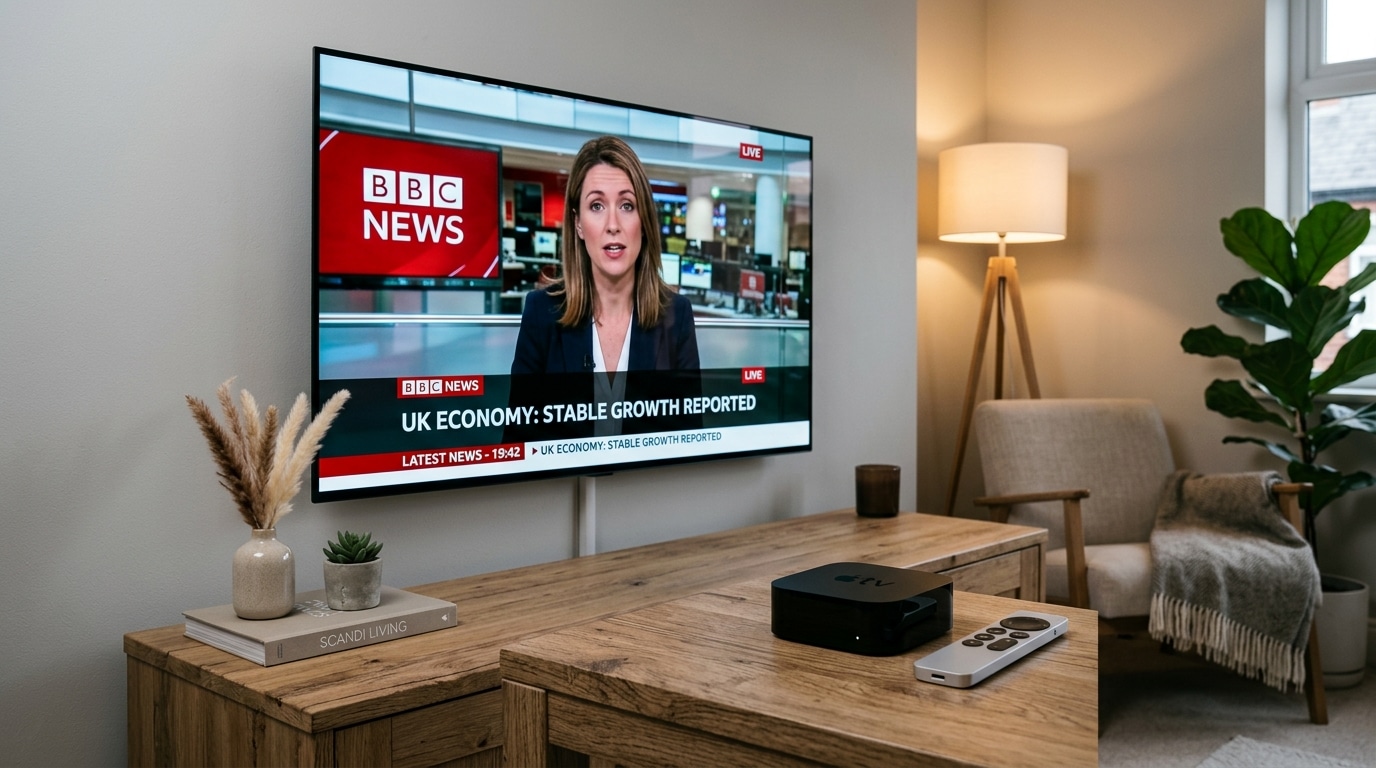
For home entertainment purists, the Apple TV 4K represents the gold standard of digital streaming hardware. Powered by Apple's custom A-series silicon (such as the A15 Bionic chip), boasting an ad-free, silky-smooth operating system (tvOS), and supporting reference-grade audio and video standards including Dolby Vision, HDR10+, and Dolby Atmos, the Apple TV provides a level of luxury and responsiveness that budget streaming sticks simply cannot match.
However, because Apple enforces strict quality and sandboxing guidelines within its tvOS App Store, many cord-cutters assume that running internet protocol television (IPTV) on an Apple TV is difficult, restricted, or impossible.
The truth is quite the opposite. In 2026, the tvOS ecosystem is home to some of the most sophisticated, gorgeously designed IPTV player applications in existence. When paired with high-capacity server infrastructure from an enterprise provider like IPTV FIESTA, an Apple TV 4K transforms into an elite, broadcast-grade television hub that outperforms traditional satellite set-top boxes in every measurable category: image clarity, channel switching speed, electronic guide aesthetics, and multi-room convenience.
In this comprehensive, step-by-step master guide, we walk you through everything you need to know about how to watch IPTV on Apple TV in 2026. We review the finest tvOS player applications, detail exact M3U and Xtream Codes setup workflows, configure display settings like Match Content Frame Rate to eliminate motion judder, calibrate multi-channel audio, examine network diagnostics using the tvOS Developer HUD, and troubleshoot common playback quirks.
Experience IPTV FIESTA UK
Upgrade your entertainment with ultra-stable, anti-freeze streaming. Access Sky Sports, TNT Sports, BBC, ITV, and UK 4K VOD on all your favorite devices.
Why Apple TV 4K Delivers an Unmatched IPTV Experience
While devices like the Amazon Firestick 4K Max offer tremendous budget value, the Apple TV 4K occupies a category of its own. Here is why discerning viewers choose Apple hardware for their daily television viewing:
1. Immense Silicon Processing Power (A15 Bionic)
Most streaming sticks utilize low-cost quad-core processors paired with 1 GB or 2 GB of RAM. The Apple TV 4K is powered by the 6-core Apple A15 Bionic processor paired with 4 GB of high-speed unified memory. This staggering processing power allows the Apple TV to decode high-bitrate 4K HEVC streams effortlessly, scroll through 50,000-channel electronic program guides at a locked 60 FPS, and launch streams in fractions of a second without heating up or throttling.
2. Automatic Match Content (Frame Rate & Dynamic Range)
Live television broadcasts in the United Kingdom and Europe are transmitted at 50 Hz, American sporting events broadcast at 60 Hz, and cinematic films run at 24 Hz (23.976 fps).
Standard streaming sticks often force your television to output at a static 60 Hz regardless of source material, creating subtle, irritating motion judder during football or tennis broadcasts. Apple TV's native Match Frame Rate feature dynamically commands your television display to switch its physical refresh rate to match the incoming broadcast precisely. The result is perfectly fluid, cinema-grade motion fidelity.
3. Gigabit Wired Ethernet & Wi-Fi 6 Networking
The Apple TV 4K (Wi-Fi + Ethernet model) features a dedicated 10/100/1000BASE-T Gigabit Ethernet port alongside modern Wi-Fi 6 (802.11ax) with MIMO. This high-throughput network interface virtually eliminates local packet loss and drops stream connection latency to single-digit milliseconds.
4. Zero Advertising & Pure Privacy
Unlike Fire OS or Google TV, which clutter your television home screen with sponsored full-screen video ads, recommended retail purchases, and aggressive background diagnostic tracking, tvOS is pristine, elegant, and ad-free. Your television belongs to you.
Hardware Comparison: Apple TV 4K vs. Apple TV HD for IPTV
Before configuring your software, it is important to identify your specific Apple TV generation:
| Model / Generation | Processor | RAM | Maximum Resolution | Gigabit Ethernet? | Verdict for 2026 IPTV |
|---|---|---|---|---|---|
| Apple TV 4K (3rd Gen, 2022) | A15 Bionic | 4 GB | 4K (2160p) 60FPS HDR10+ / Dolby Vision | Yes (Ethernet model) | The Ultimate Benchmark: Instantaneous zapping, future-proof. |
| Apple TV 4K (2nd Gen, 2021) | A12 Bionic | 3 GB | 4K (2160p) 60FPS HDR10 / Dolby Vision | Yes | Outstanding: Flawless 4K sports and ultra-smooth EPG. |
| Apple TV 4K (1st Gen, 2017) | A10X Fusion | 3 GB | 4K (2160p) 60FPS HDR10 / Dolby Vision | Yes | Very Capable: Runs modern tvOS apps with zero issues. |
| Apple TV HD (4th Gen, 2015) | Apple A8 | 2 GB | 1080p (Full HD) | 10/100 Mbps (Slow) | Acceptable for Basic HD: Cannot decode 4K; slower channel zapping. |
Recommendation: While the older Apple TV HD (2015) can handle standard 1080p broadcasts, we strongly recommend using an Apple TV 4K (1st, 2nd, or 3rd Gen) to take full advantage of native 4K UHD channels, HEVC hardware decoding, and high-speed Wi-Fi 6/Ethernet.
Top 5 IPTV Player Applications for Apple TV in 2026
Because TiviMate is developed exclusively for Android and Fire OS, Apple TV users enjoy a dedicated suite of world-class applications tailored specifically for the Siri Remote. Here are the top five players available in the official tvOS App Store:
1. iPlayTV (The Best Traditional Cable-Box Experience)
iPlayTV has long been the premier IPTV application on tvOS, offering a refined, broadcast-focused experience that feels like an ultra-premium satellite receiver.
Core Strengths:
- Silky Smooth 60 FPS Guide: Scrolling through extensive channel lists using the Siri Remote touch surface is instantaneous and tactile.
- Automatic Multi-EPG Synchronization: Allows you to assign separate EPG URLs to specific channel groups, ensuring 100% guide coverage even on niche international channels.
- iCloud Sync: Any playlist, favorite category, or custom channel order you configure on your Apple TV automatically synchronizes to iPlayTV on your iPhone and iPad via iCloud.
- VLC & Apple AVPlayer Engines: Seamlessly switch internal decoding engines between Apple's native AVPlayer and an integrated VLC core to resolve difficult stream codecs.
Detailed iPlayTV In-Depth Setup Walkthrough:
- Open the App Store on your Apple TV and purchase/download iPlayTV.
- Launch the app and click Add Playlist from the main dashboard.
- Select Xtream Codes Server.
- In the configuration fields:
- Name: Enter "IPTV FIESTA UK".
- Server URL: Input your assigned server address (e.g.,
http://iptvfiesta.stream:8080). - Username: Your account username.
- Password: Your account password.
- Toggle Include VOD (Video on Demand) if you wish to access on-demand movies and television series alongside live channels.
- Click Save & Download. iPlayTV will parse your channel lineup and download electronic guide listings into high-speed memory within seconds.
2. IPTVX (The Ultimate Netflix-Style Interface)
If you prefer a modern, cinematic interface reminiscent of Netflix or Apple TV+, IPTVX is the most visually stunning application on the platform.
Core Strengths:
- Rich Metadata Integration: Pulls studio-quality movie posters, high-resolution backdrops, actor profiles, Rotten Tomatoes scores, and official trailers from TMDb.
- Family Profiles: Create separate profiles for individual family members, each maintaining personal favorite channels, watch histories, and progress bookmarks.
- Picture-in-Picture (PiP): Native tvOS PiP support lets you shrink live television into a corner window while browsing movies or checking settings.
- Auto-Next Episode: Automatically queues the next episode of binge-worthy series seamlessly.
Detailed IPTVX Setup Walkthrough:
- Download IPTVX from the tvOS App Store.
- Launch the application and select Add Service.
- Choose Xtream API (recommended) or M3U Playlist.
- Enter your credentials from your IPTV FIESTA subscription activation email.
- IPTVX will automatically categorize your library into "Live TV", "Movies", and "TV Series", organizing content into visually gorgeous carousels.
3. UHF (The Clean Modern Challenger)
UHF is a sleek, modern, and rapidly growing IPTV player designed specifically for iOS, iPadOS, and tvOS. Built with modern Swift and native Apple technologies, it emphasizes speed, typography, and simplicity.
Core Strengths:
- Minimalist UI: Uncluttered, elegant typography with smooth animations that adhere strictly to Apple's Human Interface Guidelines.
- Instant Group Filtering: Swiftly jump between Sports, Entertainment, Documentaries, and Regional packages.
- Multi-View Integration: Allows viewing multiple sporting events simultaneously in split-screen arrangements.
- iCloud Backup: Effortless playlist synchronization without requiring third-party account registration.
4. Smarters Player Lite (The Free & Reliable Workhorse)
For users who prefer a familiar, zero-cost player, Smarters Player Lite is the official tvOS port of the widely recognized IPTV Smarters Pro application.
Core Strengths:
- Zero Cost: Free to download from the Apple App Store without forced upfront purchases.
- Direct Xtream Codes Support: Easy three-line login using your Server URL, Username, and Password.
- Multi-Screen Support: Native multi-screen grid viewing for watching up to four broadcasts at once.
5. GSE Smart IPTV (The Versatile Classic)
One of the earliest IPTV players on iOS, GSE Smart IPTV remains a versatile choice for advanced users who require extensive playlist customization, HTTP proxy routing, and deep JSON configuration options.
How to Configure Your Subscription: Step-by-Step Setup
Setting up an IPTV subscription on Apple TV can be accomplished via two methods: the Xtream Codes API or a direct M3U Plus URL. We strongly recommend the Xtream Codes method because it handles authentication, channel categories, and EPG schedules dynamically.
[IPTV Provider Server]
         │
         │ (Xtream Codes API: URL + User + Pass)
         ▼
[Apple TV 4K (tvOS App)]
  ├── iPlayTV / IPTVX / UHF
  │     ├── High-Speed EPG Caching
  │     ├── Hardware HEVC/H.264 Decoding
  │     └── Automatic Frame Rate Switching (Match Content)
  ▼
[4K HDR Television Display]
Method A: Xtream Codes API (Recommended)
- Launch your chosen player (e.g., iPlayTV or IPTVX).
- Select Add Playlist > Xtream Codes API.
- Enter your details:
- Playlist Title:
IPTV FIESTA - Server URL:
http://iptvfiesta.stream:8080(use your assigned server URL) - Username:
your_username - Password:
your_password
- Playlist Title:
- Tap Connect or Login. Your channels, categories, and program schedules will synchronize immediately.
Method B: M3U Plus URL Setup
If your player only supports M3U playlists:
- Open your player and select Add M3U Playlist.
- Type in your provider's M3U URL or use the player's web-management tool:
- Many tvOS apps (like iPlayTV) provide a local IP web portal (e.g.,
http://192.168.1.50:8080). You can open this web address on your laptop or smartphone, paste your long M3U link, and hit send, sparing you from typing long URLs using the remote control!
- Many tvOS apps (like iPlayTV) provide a local IP web portal (e.g.,
- Add your XMLTV EPG URL if prompted, so channel schedule data populates.
Essential Apple TV Settings for Flawless IPTV Playback
To unlock the absolute best visual fidelity and avoid audio-sync or motion judder issues, configure your Apple TV settings as follows:
1. Enable Match Frame Rate & Dynamic Range
This is the single most important setting for sports fans:
- Open your Apple TV Settings.
- Navigate to Video and Audio.
- Select Match Content.
- Set Match Dynamic Range to ON.
- Set Match Frame Rate to ON.
Why this matters: Premier League football broadcasts run at 50 FPS (50 Hz). When Match Frame Rate is enabled, your TV automatically synchronizes its refresh rate to 50 Hz, eliminating subtle micro-stutters during high-speed ball movements.
2. Set Default Resolution to 4K SDR (50 Hz or 60 Hz)
- Go to Settings > Video and Audio > Format.
- Select 4K SDR (Choose 50 Hz in the UK, or 60 Hz in North America).
- Crucial Rationale: Setting your default format to 4K SDR ensures that standard broadcast television menus and SDR channels look natural and accurate, while HDR/Dolby Vision is triggered automatically only when viewing genuine HDR content.
3. Optimize Audio Settings (LPCM vs. Dolby 5.1)
- Apple TV natively decodes incoming audio streams internally using its high-powered processor and outputs uncompressed Multi-Channel Linear PCM (LPCM) to your soundbar or AV receiver.
- In Settings > Video and Audio > Audio Format:
- Set Change Format to OFF (Recommended). This delivers uncompressed, bit-perfect surround sound.
- If you own an older soundbar that only accepts optical inputs without multi-channel LPCM support, set Change Format to Dolby Digital 5.1.
4. Optimize Network Configuration (Wired vs. 5 GHz Wi-Fi)
- If your Apple TV 4K features an Ethernet port, plug a Cat6 cable directly into your home router. As detailed in our guide on IPTV internet speed requirements, wired Ethernet reduces ping latency to single digits and eliminates wireless interference.
- If connecting via Wi-Fi, ensure your Apple TV is connected strictly to the 5 GHz Wi-Fi network. Go to Settings > Network > Wi-Fi and verify you are not connected to an older 2.4 GHz band.
Advanced tvOS Network Diagnostics: Using the Developer HUD to Monitor Stream Health
One of the best-kept secrets of the Apple TV 4K is its built-in professional video diagnostic HUD (Heads-Up Display). Professional broadcast engineers use this tool to verify exact bitrates, decoder performance, dropped frames, and network jitter in real time while watching live television.
How to Enable the Developer Menu on Apple TV
To activate this diagnostic HUD on tvOS, follow these steps:
- Ensure your Apple TV and a Mac computer are connected to the same local Wi-Fi network.
- On your Mac, launch Xcode (available free from the Mac App Store).
- Open Xcode Settings > Devices and Simulators, click the '+' icon, and pair your Apple TV wirelessly.
- Once paired, a new Developer menu permanently appears inside the main Settings app of your Apple TV.
- In Apple TV Settings > Developer, toggle Playback HUD to ON.
What the Diagnostic Overlay Displays:
- Current Bitrate: Shows real-time incoming bandwidth in Megabits per second (e.g., 18.4 Mbps for a pristine 4K 60 FPS sports feed).
- Frame Drops (Dropped Frames): A counter that shows whether your Apple TV silicon or display pipeline is dropping video frames. In a healthy connection, this number stays at zero.
- Resolution and Color Space: Confirms the exact video matrix (e.g., 3840x2160, BT.2020 / HDR10, 50.00 Hz).
- Buffer Health: Shows how many seconds of broadcast audio and video are pre-cached in memory. A healthy buffer on IPTV FIESTA streams maintains a steady 8 to 15 seconds of cushion.
Mastering Apple TV Audio Calibration: From HomePods to Audiophile AV Receivers
Audio synchronization and dynamic range can make or break the live sports and cinematic movie experience. tvOS handles digital audio differently than Android or Windows devices, and understanding its audio pipeline guarantees optimal acoustic performance.
1. The tvOS Linear PCM (LPCM) Architecture
Budget streaming boxes pass compressed bitstreams (like raw Dolby Digital 5.1) directly to your soundbar via HDMI ARC, requiring your soundbar to decode the audio. Apple TV operates on an audiophile architecture: it decodes Dolby Digital, Dolby Digital Plus, and AAC internally with zero loss using its massive A15 processor, and sends pure, uncompressed Multi-Channel Linear PCM to your AV receiver or soundbar.
- Why this is superior: Linear PCM introduces zero decoding lag in your soundbar, eliminating lip-sync mismatches. It also allows Apple TV to mix system alerts and Siri feedback into your television speakers simultaneously without cutting out match commentary.
- Setting it up: Go to Settings > Video and Audio > Audio Format. Keep Change Format set to OFF. Only switch this to 'Dolby Digital 5.1' if your television is connected to a vintage soundbar via an optical SPDIF cable that cannot receive multi-channel LPCM.
2. Spatial Audio with Dynamic Head Tracking (AirPods Pro & Max)
For late-night football matches or action movies when family members are asleep, tvOS offers a viewing feature unmatched by any other platform on earth. By pairing AirPods Pro (2nd Gen) or AirPods Max:
- The Apple TV generates a virtual 7.1.4 Dolby Atmos soundstage around your head.
- Dynamic gyroscopic head tracking anchors the television audio to the physical TV screen: when you turn your head toward the kitchen, the match commentary remains anchored right in front of you.
- To calibrate, swipe down or hold the TV button on your Siri Remote to reveal the tvOS Control Centre, select your AirPods, and toggle Spatial Audio to Fixed or Head Tracked.
3. Apple HomePod Stereo Pair Configuration
If you do not have space for a dedicated multi-speaker AV receiver, pairing two full-sized Apple HomePods (2nd Gen) creates a wide, room-filling soundstage:
- In tvOS Settings > Video and Audio > Audio Output, select your HomePod Stereo Pair as the default audio device.
- The Apple TV will transmit uncompressed multi-channel audio over an ultra-low-latency 5 GHz ad-hoc Wi-Fi direct connection.
- Turn on Enhance Dialogue (available in tvOS 17 and tvOS 18) inside your player's audio options to elevate commentator voices over crowd noise during high-intensity football matches.
M3U vs. Xtream Codes vs. Stalker Portal: Which Protocol Works Best on Apple TV?
When configuring your IPTV subscription inside tvOS applications, you will encounter three primary connection protocols. Here is a technical breakdown of each protocol's performance on Apple hardware:
| Protocol | Connection Method | EPG Integration | VOD & Series Support | Recommended on tvOS? |
|---|---|---|---|---|
| Xtream Codes API | Server URL + Username + Password | Automatic live guide fetching | Full categorization with movie posters, trailers, and cast info | Strongly Recommended (Gold Standard) |
| M3U Plus Playlist | Static .m3u8 web URL or file upload | Requires separate XMLTV URL link | Flat playlist with limited metadata | Good Alternative (Ideal for simple channel lists) |
| Stalker Portal / MAC | Hardware MAC Address pairing | Handled by server portal middleware | Interactive portal interface | Not Recommended on tvOS (Better suited to dedicated Linux MAG boxes) |
Why Xtream Codes API is Superior for Apple TV
When you connect using the Xtream Codes API on apps like iPlayTV or IPTVX:
- Dynamic Grouping: The application splits live sports, UK entertainment, news, movies, and TV series into clean, structured categories with zero manual tagging.
- Instant Catch-Up Generation: tvOS apps can read server-side archive metadata automatically, highlighting previous programs in your EPG that can be replayed instantly.
- Bandwidth Savings: The Xtream Codes API requests only the specific channel categories you are viewing, whereas large 50 MB M3U playlist files must be downloaded in their entirety every single time the app launches, consuming unnecessary memory and broadband data.
Cross-Device Synchronization with iCloud: Apple TV, iPad, and iPhone
One of the greatest advantages of using native tvOS IPTV apps is the seamless integration with Apple's iCloud ecosystem. If you travel frequently or enjoy watching matches in different rooms of your home, apps like iPlayTV and IPTVX provide effortless cross-device continuity:
1. Universal Favorites & Channel Sorting
When you spend twenty minutes organizing your favorite sports, news, and cinema channels on your living room Apple TV 4K, you do not want to repeat that process on your bedroom TV or your iPad. Because iPlayTV and IPTVX leverage iCloud Key-Value Storage and CloudKit databases, your pinned favorites, custom channel hidden lists, and custom channel numbering automatically synchronize across:
- Apple TV 4K (Living Room & Bedroom)
- iPhone 15 / 16 Pro
- iPad Pro / Air
- Mac (via Apple Silicon Catalyst support)
2. Cross-Device Watch History and 'Continue Watching'
When viewing on-demand cinema or multi-episode television series via IPTVX, your playback position is synchronized to the second. You can begin watching a documentary on your Apple TV 4K in the evening and pick up exactly where you left off on your iPad during your morning train commute.
Step-by-Step Display Calibration: Maximizing 4K HDR and SDR Fidelity on Apple TV
To achieve true reference-grade picture quality without crushed black levels or unnatural color casts, spend five minutes calibrating your Apple TV's internal video pipeline:
1. Calibrate Color Balance Using Your iPhone
tvOS features an ingenious automated optical calibration tool that uses your iPhone's front-facing TrueDepth camera:
- Go to Settings > Video and Audio > Calibration > Color Balance.
- Unlock your iPhone and bring it near your Apple TV. A prompt will appear on your phone screen.
- Turn your iPhone screen facing the television and hold it inside the designated box on your TV display.
- The Apple TV will flash white, red, green, and blue test swatches. Your iPhone measures the color temperature and automatically applies an ICC correction profile to eliminate warm or cool color tints.
2. Format: 4K SDR vs. 4K HDR Default
Many users mistakenly set their Apple TV default format to '4K HDR' or '4K Dolby Vision'. This is an error!
- When your default output is HDR, tvOS forces standard definition and HD SDR live television broadcasts to be artificially stretched into an HDR color space, causing skin tones to appear unnaturally orange and text graphics to glow harshly.
- The Professional Setting: Set Format to 4K SDR (50 Hz or 60 Hz), and set Match Dynamic Range to ON.
- The Result: Your Apple TV outputs pristine, natural SDR for everyday live television and sports, and automatically commands your television to switch into high-impact HDR10 or Dolby Vision only when you launch a genuine 4K HDR cinema stream.
Troubleshooting Common Apple TV IPTV Issues
If you encounter occasional playback issues on tvOS, follow these practical diagnostic steps:
1. Brief Black Screen Flash When Selecting a Channel
- The Cause: Your Apple TV's "Match Frame Rate" feature is instructing your television to switch HDMI refresh rates (e.g., from 60 Hz to 50 Hz).
- The Fix: This is completely normal behavior and guarantees judder-free 50 FPS European sports. However, if your TV takes more than 2 seconds to negotiate, ensure you are using a certified High-Speed 48 Gbps HDMI 2.1 cable.
2. Playlist Fails to Download or Displays "Connection Error"
- The Cause: An incorrect character in your Server URL, a space accidentally pasted into your password, or temporary ISP DNS filtering.
- The Fix:
- Carefully re-check your username and password for capitalization.
- Change your Apple TV's DNS server: Go to Settings > Network > [Your Connection] > Configure DNS > Manual, and enter Cloudflare's ultra-fast resolver:
1.1.1.1. - Restart your Apple TV via Settings > System > Restart.
3. Audio Plays But Video is a Black Screen
- The Cause: The native Apple AVPlayer engine cannot decode the video container format.
- The Fix: In your player app settings (such as iPlayTV or IPTVX), switch the active video engine from Apple AVPlayer to VLC Player Core. VLC includes comprehensive software decoders for rare MPEG-TS and raw broadcast feeds. (See our master tutorial on fixing IPTV black screens).
4. Missing Electronic Program Guide (EPG) Schedule Data
- The Cause: Expired EPG cache or time zone mismatch.
- The Fix: In your player's playlist settings, click Clear EPG Cache, then select Update Guide Data. In Apple TV Settings > General > Time Zone, ensure your device is set to London (GMT/BST).
5. Siri Remote Touch Surface Feels Overly Sensitive
- The Cause: High default trackpad tracking speed.
- The Fix: Go to Settings > Remotes and Devices > Clickpad Tracking and change the setting to "Medium" or "Slow". You can also set Clickpad to Click Only to prevent accidental swipe gestures when browsing channels.
Comprehensive Feature Comparison: Apple TV 4K vs. Fire TV Stick 4K Max
To see how Apple's flagship streamer compares against the most popular budget streaming stick, review this side-by-side analysis:
| Feature / Metric | Apple TV 4K (3rd Gen) | Amazon Fire TV Stick 4K Max (2nd Gen) | Impact on IPTV |
|---|---|---|---|
| Central Processor | Apple A15 Bionic (6-Core) | MediaTek MT7921LS Quad-Core | Apple TV scrolls 50,000 channels with zero UI lag |
| System RAM | 4 GB High-Speed Unified | 2 GB LPDDR4 | Apple TV holds larger EPG databases in memory |
| Operating System | tvOS (Clean, Ad-Free) | Fire OS (Heavy ad banners & telemetry) | Apple TV provides a pure, distraction-free interface |
| Match Frame Rate (AFR) | System-Wide Flawless Implementation | App-dependent (often inconsistent) | Crucial for eliminating judder on 50 FPS UK sports |
| Premier Player | iPlayTV / IPTVX / UHF | TiviMate | Both platforms boast reference-grade players |
| Network Interface | Gigabit Ethernet (1000 Mbps) + Wi-Fi 6 | 10/100 Mbps (via adapter) + Wi-Fi 6E | Apple TV provides vastly higher wired throughput |
| Multi-View Capability | Picture-in-Picture (PiP) | Full Multi-View (Up to 9 screens in TiviMate) | Firestick holds an advantage for multi-screen sports |
Frequently Asked Questions
Conclusion: Unleash the Full Potential of Apple TV with IPTV FIESTA
The Apple TV 4K is an engineering triumph. When powered by dedicated, high-speed streaming infrastructure from a premium provider, it delivers a home entertainment experience that makes traditional cable and satellite television feel entirely obsolete.
At IPTV FIESTA, our broadcast servers are optimized to deliver uncompressed 4K Ultra HD and 60 FPS sports streams with zero buffering, complete UK electronic program guides, and seamless compatibility across all major tvOS players.
- Explore our flexible, contract-free UK subscription packages.
- Browse our massive live sports, cinema, and international channels lineup.
- Check out our detailed device installation tutorials.
- Connect with our friendly 24/7 support team on WhatsApp to request your free 24-hour test trial and start streaming on your Apple TV today!