How to Watch IPTV on Firestick in 2026: The Complete Step-by-Step Setup Guide
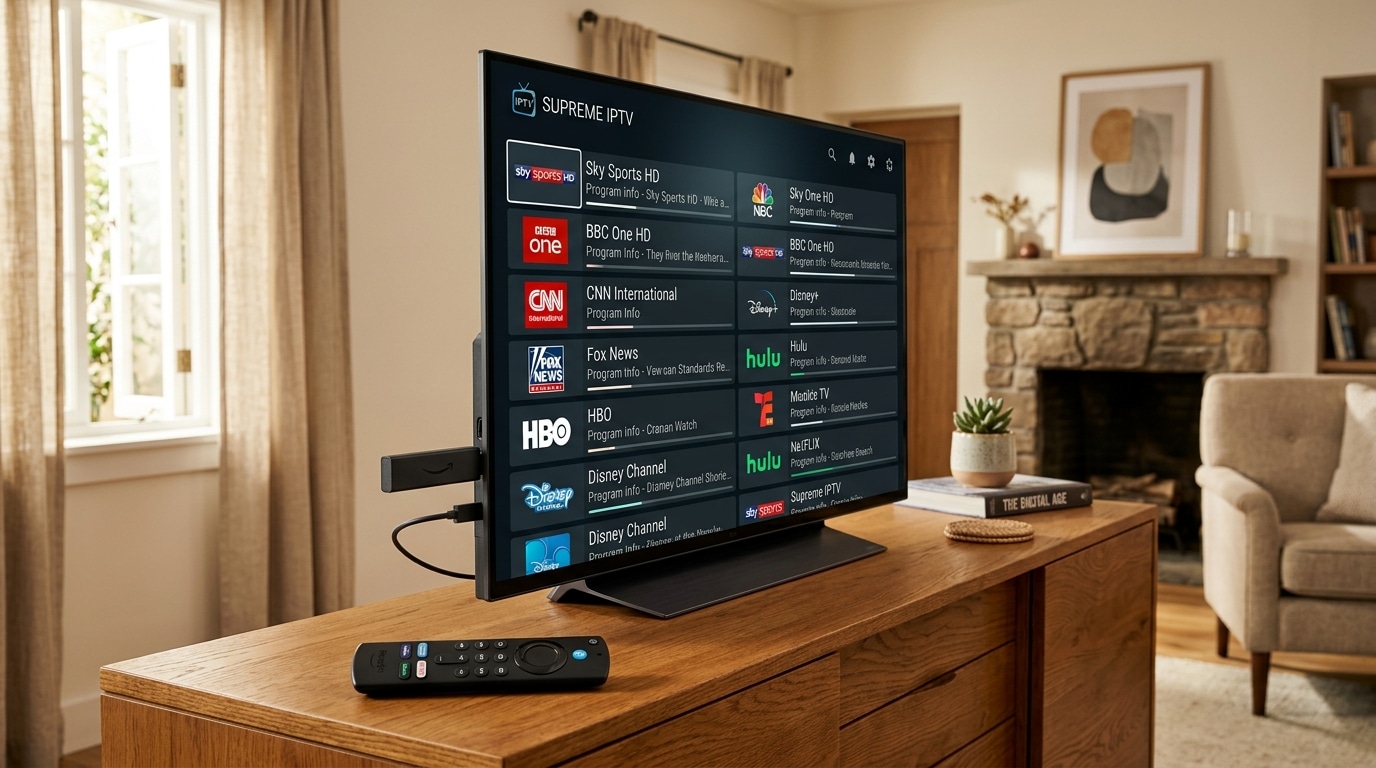
Across the United Kingdom and around the globe, the Amazon Fire TV Stick has solidified its reputation as the undisputed king of cord-cutting streaming devices. Compact, remarkably affordable, and powered by an Android-based operating system (Fire OS), the Firestick transforms any standard HDMI television into a high-powered digital entertainment command centre.
However, because the official Amazon Appstore does not host dedicated third-party internet protocol television (IPTV) players like TiviMate or IPTV Smarters Pro, many new cord-cutters find the initial setup process daunting. Online forums are filled with confusing acronyms: sideloading, APK files, Downloader codes, Developer Options, M3U playlists, and Xtream Codes API.
The reality is that configuring an Amazon Firestick for broadcast-quality IPTV streaming is simple, safe, and takes less than ten minutes when you follow the correct step-by-step procedure.
In this authoritative master setup guide, we walk you through everything you need to know about how to watch IPTV on Firestick in 2026. We compare every modern Fire TV model, demonstrate how to unlock the hidden Developer Options on modern Fire OS 7 and Fire OS 8, install the essential Downloader utility, sideload the industry's finest player applications, configure Xtream Codes credentials, optimize Fire OS background settings to prevent memory throttling, and troubleshoot common playback quirks. Throughout this guide, we also demonstrate how pairing your Firestick with high-capacity server infrastructure from IPTV FIESTA delivers an instantaneous, buffer-free viewing experience that easily rivals traditional satellite and cable television.
Experience IPTV FIESTA UK
Upgrade your entertainment with ultra-stable, anti-freeze streaming. Access Sky Sports, TNT Sports, BBC, ITV, and UK 4K VOD on all your favorite devices.
Why Amazon Firestick is the UK's Most Popular IPTV Device
Before diving into the installation process, it is worth understanding why millions of British cord-cutters choose the Amazon Firestick over generic smart TV apps or budget Android boxes:
1. Cost-to-Performance Ratio
Priced between £35 and £70, Fire TV Sticks deliver hardware video decoding capabilities that punch far above their price class. Dedicated hardware decoders for H.264 (AVC), H.265 (HEVC), and the newer AV1 codec allow these miniature dongles to output fluid 4K Ultra HD at 60 frames per second without overheating.
2. Full Android Compatibility via Sideloading
Unlike closed operating systems found on Samsung Tizen, LG webOS, or Roku, Fire OS is built upon the open-source Android codebase. This architecture grants you complete freedom to sideload powerful third-party media players (such as TiviMate, XCIPTV, and OTT Navigator) that are not available in standard retail app stores.
3. Portable & Discreet Form Factor
A Firestick plugs directly into the back of your television's HDMI port, remaining completely out of sight. When you travel on holiday or visit family across the UK, you can simply unplug your Firestick, pack it into your pocket, and plug it into any hotel or Airbnb TV to enjoy your entire television subscription instantly.
4. Bluetooth Remote with Alexa Voice Navigation
The ergonomic Alexa Voice Remote provides tactile physical buttons for volume, power, channel navigation, and playback control, giving the viewing experience the familiar feel of a high-end cable set-top box.
Fire TV Hardware Comparison: Which Model is Best for IPTV in 2026?
Amazon sells several iterations of the Fire TV Stick. Choosing the right model ensures your device has adequate processing power and memory to scroll through large channel guides effortlessly:
| Fire TV Model | Processor & GPU | RAM | Storage | Wi-Fi Standard | Maximum Resolution | IPTV Suitability (2026) |
|---|---|---|---|---|---|---|
| Fire TV Stick 4K Max (2nd Gen, 2023/2026) | Quad-Core 2.0 GHz + 850 MHz GPU | 2.0 GB | 16 GB | Wi-Fi 6E (Tri-Band) | 4K @ 60 FPS (HDR10+, Dolby Vision) | The Gold Standard: Massive 16GB storage, fastest channel switching, future-proof. |
| Fire TV Stick 4K (2nd Gen, 2023/2026) | Quad-Core 1.7 GHz | 2.0 GB | 8 GB | Wi-Fi 6 | 4K @ 60 FPS (HDR10+, Dolby Vision) | Outstanding: Flawless 4K live sports and smooth electronic program guides. |
| Fire TV Stick HD (Standard) | Quad-Core 1.7 GHz | 1.0 GB | 8 GB | Wi-Fi 5 (802.11ac) | 1080p Full HD @ 60 FPS | Good Budget Choice: Ideal for bedroom 1080p TVs; limited RAM for large playlists. |
| Fire TV Stick Lite | Quad-Core 1.7 GHz | 1.0 GB | 8 GB | Wi-Fi 5 | 1080p Full HD @ 60 FPS | Entry Level: Lacks dedicated TV volume/power buttons on remote. |
| Fire TV Cube (3rd Gen) | Octa-Core (4x 2.2GHz + 4x 2.0GHz) | 2.0 GB | 16 GB | Wi-Fi 6E + Built-in Ethernet | 4K @ 60 FPS | Ultimate Powerhouse: Dedicated Ethernet port, hands-free Alexa, blazing speed. |
Recommendation: For the smoothest possible experience with zero sluggishness, we strongly recommend the Fire TV Stick 4K Max (2nd Gen). Its 16 GB of internal storage provides ample space for caching extensive electronic program guides and multiple player apps without encountering "Low Storage" warnings.
Phase 1: Preparing Your Firestick (Unlocking Developer Options)
On modern versions of Fire OS (Fire OS 7 and Fire OS 8), Amazon hides the "Developer Options" menu by default to prevent casual users from modifying system files. To sideload IPTV applications, you must first re-enable this hidden menu using the secret 7-clicks method:
[Firestick Home Screen]
         │
         ▼
[Settings (Gear Icon)] ──► [My Fire TV] ──► [About]
                                               │
                                               ▼
                         Click on [Fire TV Stick Name]
                         SEVEN (7) TIMES RAPIDLY
                                               │
                                               ▼
                 "No need, you are already a developer!"
                                               │
                                               ▼
         [Developer Options] is now visible under [My Fire TV]!
Detailed Step-by-Step Instructions:
- Turn on your television and boot up your Firestick to the Home Screen.
- Using the directional ring on your remote, scroll all the way to the right and select the Settings (Gear Icon).
- In the Settings grid, select My Fire TV (on some older models, this may be labelled Device or System).
- Click on About.
- Highlight the very first option at the top, which displays the name of your device (e.g., Fire TV Stick 4K Max or Fire TV Stick 4K).
- Press the Centre Select Button on your remote 7 times consecutively.
- At the bottom of the screen, a small toast notification will appear saying: "No need, you are already a developer."
- Press the Back Button on your remote once. You will now see a brand-new menu option directly beneath About called Developer Options!
- Click on Developer Options.
- If you see ADB Debugging, turn it ON.
- Click on Install Unknown Apps (or Apps from Unknown Sources on older Fire OS versions). We will return here after installing our downloader utility.
Phase 2: Installing the Downloader Utility & Configuring Permissions
Because Fire OS does not include a traditional open web browser capable of downloading raw APK installation files directly to device storage, you need a specialized tool called Downloader by AFTVnews. Downloader is an official, safe, and free utility available directly inside the Amazon Appstore.
Step-by-Step Installation:
- From the Firestick Home Screen, navigate to the Find menu (or click the magnifying glass search icon).
- Type or voice-search for Downloader.
- Locate the orange Downloader icon by AFTVnews and click on it.
- Click Get or Download to install the application.
- Once downloaded, do not launch the app immediately. Press the Home Button on your remote.
- Navigate to Settings > My Fire TV > Developer Options > Install Unknown Apps.
- Scroll down to Downloader and press the Centre Select button to switch its permission to ON.
- Note: This grants Downloader permission to unpack and install APK application files onto your Firestick.
- Return to your apps list and open Downloader.
- When prompted with a permissions dialog asking: "Allow Downloader to access photos, media and files on your device?", click Allow.
- Dismiss the welcome pop-up by clicking OK.
Phase 3: Sideloading the Best IPTV Player Applications
With Downloader configured, you can now install your preferred IPTV media player. Downloader uses simple numeric shortcodes that automatically redirect to the official APK download servers:
┌─────────────────────────────────────────────────────────────┐
│             POPULAR DOWNLOADER QUICK CODES (2026)           │
├──────────────────────────────┬──────────────────────────────┤
│ Application Name             │ Downloader Numeric Code      │
├──────────────────────────────┼──────────────────────────────┤
│ TiviMate IPTV Player         │ 272483 (or tivimate.com)     │
│ IPTV Smarters Pro (Official) │ 75317  (or 80911)            │
│ XCIPTV Player                │ 40590                        │
│ OTT Navigator IPTV           │ 54823                        │
└──────────────────────────────┴──────────────────────────────┘
Let us walk through the installation of the two top-rated players:
Option A: TiviMate IPTV Player (The Ultimate Experience)
TiviMate is widely recognized as the single best IPTV player ever developed for Android TV and Fire OS. It provides an ultra-fast, professional satellite-receiver interface, lightning-quick zapping, catch-up TV, multi-screen viewing, and comprehensive guide customization.
[Open Downloader URL Box] ──► Enter Code: 272483 ──► Tap "Go"
                                    │
                                    ▼
                         [APK Downloads Automatically]
                                    │
                                    ▼
                             Click "Install"
                                    │
                                    ▼
                        Click "Delete" on APK File
                      (Saves precious Firestick storage!)
Detailed TiviMate Setup Steps:
- Open the Downloader application.
- In the URL/Search Term text box, enter the numeric code 272483 (or type
https://tivimate.com) and click Go. - Downloader will connect to the server and download the latest verified TiviMate APK file.
- When the download completes, Fire OS will automatically open the installation prompt. Click Install in the bottom-right corner.
- Once installation finishes, click Done (do not click Open yet).
- Downloader will prompt you with a dialog asking whether you wish to delete the APK installation file. Click Delete, and then click Delete again to confirm.
- Pro-Tip: The app is already installed! Deleting the leftover installation file saves 20 to 30 megabytes of precious Firestick storage.
- Return to your home screen, navigate to Your Apps & Channels, highlight TiviMate, press the Options Button (3 horizontal lines) on your remote, and select Move to front so it always appears first on your home screen.
Option B: IPTV Smarters Pro (The Reliable Free Option)
If you prefer a completely free player with an intuitive, multi-panel dashboard, IPTV Smarters Pro is the world's most recognized alternative:
Detailed Smarters Pro Setup Steps:
- Open Downloader.
- Enter the numeric code 75317 (or visit the official Smarters website) and tap Go.
- Allow the APK to download.
- Click Install, then click Done.
- Delete the temporary APK file to preserve disk space.
- Launch IPTV Smarters Pro from your apps library.
- Accept the Terms of Service and choose TV as your device format.
Phase 4: Connecting Your Subscription via Xtream Codes API
Now that your player application is installed, you need to connect it to your active television subscription. Modern IPTV services like IPTV FIESTA provide account credentials via the Xtream Codes API, which is vastly superior to typing out long, error-prone 150-character M3U URLs.
[Xtream Codes API Credentials Required]
  ├── 1. Server URL:  http://iptvfiesta.stream:8080 (Assigned Port)
  ├── 2. Username:    Your assigned account username
  └── 3. Password:    Your assigned account password
Step-by-Step Connection in TiviMate:
- Launch TiviMate on your Firestick.
- Click Add Playlist.
- Choose Xtream Codes.
- Enter your credentials accurately:
- Server Address: Type your server URL (e.g.,
http://iptvfiesta.stream:8080). - Username: Enter your unique username.
- Password: Enter your unique password.
- Tip: Tick the box for Include VOD (Video on Demand) if you want full access to on-demand movies and box sets.
- Server Address: Type your server URL (e.g.,
- Click Next. TiviMate will connect to the server cluster, authenticate your account, and begin downloading your channel bouquets and electronic program guide.
- When prompted, enter a name for the playlist (e.g.,
IPTV FIESTA UK) and click Done. - Your full live channel guide will populate on screen instantly.
Phase 5: Deep Fire OS System Tuning & Optimization
By default, Amazon Fire OS runs dozens of telemetry trackers, background diagnostic monitors, and home screen advertising video players that consume valuable RAM and CPU cycles. Tuning these system settings ensures your Firestick dedicates 100% of its resources to video decoding:
┌─────────────────────────────────────────────────────────────┐
│            FIRESTICK PERFORMANCE OPTIMIZATION               │
├─────────────────────────────────────────────────────────────┤
│ [✔] Turn OFF Amazon Data Monitoring & Telemetry             │
│ [✔] Disable Autoplay Video & Audio Ads                      │
│ [✔] Match Original Frame Rate: Turn ON                      │
│ [✔] Set Color Depth to 10-bit / 12-bit (for 4K HDR)         │
│ [✔] Clear Cache on Unused Background Applications          │
│ [✔] Power Device from Wall Outlet (NOT TV USB Port!)        │
└─────────────────────────────────────────────────────────────┘
1. Disable Amazon Telemetry and Data Collection
Amazon collects extensive diagnostic data in the background, generating unnecessary network traffic:
- Navigate to Settings > Preferences > Privacy Settings.
- Set Device Usage Data to OFF.
- Set Collect App Usage Data to OFF.
- Set Interest-based Ads to OFF.
- Press Back, select Data Usage Monitoring, and turn it OFF.
2. Disable Home Screen Autoplay Video and Audio
Whenever you land on the Fire TV home screen, Amazon automatically begins buffering and playing full-screen movie trailers and commercial advertisements:
- Navigate to Settings > Preferences > Featured Content.
- Set Allow Video Autoplay to OFF.
- Set Allow Audio Autoplay to OFF.
- Result: Your Firestick will boot up silently, load menus instantly, and stop wasting bandwidth on background commercial video feeds.
3. Enable Match Original Frame Rate
As detailed in our sports setup guides, live UK football and sports are broadcast at 50 FPS, while films run at 24 FPS.
- Go to Settings > Display & Sounds > Display.
- Scroll down to Match Original Frame Rate and turn it ON.
- When enabled in supported players, your Firestick commands your TV display to synchronize its physical refresh rate to the incoming broadcast, eliminating motion micro-stutters during high-speed ball movement.
4. Power Your Firestick Correctly (The Golden Rule)
One of the most widespread mistakes made by Firestick owners is plugging the micro-USB power lead directly into a USB port on the back of their television.
- Why this is catastrophic: Television USB ports typically provide only 0.5 Amps (500mA) of electric current. A Firestick 4K or 4K Max requires 1.0 to 1.5 Amps during peak 4K HEVC video decoding. Under-powering your Firestick causes spontaneous device reboots, audio desynchronization, Wi-Fi chip throttling, and sudden app crashes!
- The Solution: Always plug your Firestick into the included mains wall power adapter using an electrical wall socket.
Advanced TiviMate Customization: Bouquets, EPG Time Offsets & Logos
Once your playlist is active in TiviMate, investing ten minutes in personalizing your guide transforms a chaotic list of thousands of channels into an immaculate, personalized television guide:
1. Managing & Hiding Channel Groups (Bouquets)
A premium subscription from IPTV FIESTA provides international sports, regional news, premium cinema, and multilingual entertainment from across the globe. If your household only watches UK and US content, you can hide the rest:
- In TiviMate, press the Left Arrow on your remote to reveal the category sidebar.
- Long-press the Centre Select Button on any category (e.g., UK Entertainment).
- Select Manage Groups.
- Uncheck any categories you do not require (e.g., international regions or redundant feeds).
- Result: Your electronic guide becomes clean, uncluttered, and significantly faster to navigate.
2. Setting Custom EPG Time Offsets
If your program guide listings appear one hour ahead or behind current time due to daylight saving adjustments between Greenwich Mean Time (GMT) and British Summer Time (BST):
- Navigate to TiviMate Settings > Playlists > [Your Playlist Name] > EPG.
- Select Time Offset.
- Adjust the offset in 30-minute or 1-hour increments (e.g.,
+00:00or+01:00) until the current program matches your wall clock.
3. Tuning the Video Buffer Size for Zero Stutter
TiviMate allows you to customize the playback buffer cushion based on your home internet stability:
- Go to Settings > Playback.
- Select Buffer Size.
- Options:
- Small (0.5 – 1.0s): Delivers near-instantaneous zapping when switching channels. Ideal for full fibre (FTTP) wired connections.
- Medium (2.0 – 3.0s): The recommended balanced default for most UK broadband connections.
- Large (4.0 – 5.0s): Best for Wi-Fi connections prone to occasional radio interference, providing an extra buffer cushion against momentary packet drops.
Configuring Static IP and Custom DNS on Fire OS
By default, the Firestick uses DHCP to obtain its IP address and DNS resolver from your home broadband router. Switching to a static IP and high-speed Anycast DNS eliminates domain lookup bottlenecks and prevents UK ISP filtering:
[Firestick Network Settings]
         │
         ├── IP Address:   192.168.1.150  (Outside DHCP pool)
         ├── Gateway:      192.168.1.1    (Your Router Address)
         ├── Subnet Mask:  24 (Equivalent to 255.255.255.0)
         ├── DNS 1:        1.1.1.1        (Cloudflare Ultra-Fast)
         └── DNS 2:        8.8.8.8        (Google Public DNS)
Step-by-Step Configuration:
- Navigate to Settings > Network.
- Highlight your connected Wi-Fi or Ethernet network and note down your router's IP Gateway (e.g.,
192.168.1.1). - Press the Options Button (3 horizontal lines) to forget or reconfigure the network.
- Select your Wi-Fi network again, enter your password, but instead of clicking Connect, select Advanced.
- Enter a static IP outside your router's standard DHCP allocation range (for example,
192.168.1.150). - Enter the Gateway IP (e.g.,
192.168.1.1). - Enter Network Prefix Length: type 24 and click Next.
- Enter DNS 1: type 1.1.1.1 (Cloudflare).
- Enter DNS 2: type 8.8.8.8 (Google).
- Click Connect. Your Firestick now bypasses your ISP's slow internal DNS servers, accelerating stream handshake times.
Managing Fire OS System RAM with Background Process Killers
Unlike Android TV or Apple tvOS, Fire OS does not automatically terminate background applications when you launch a new app. If you previously opened Netflix, YouTube, Prime Video, and Downloader, all of those apps continue running in background RAM.
On an 8 GB Firestick with only 1.5 GB or 2 GB of RAM, background bloat leaves very little memory for TiviMate's video decoding buffers:
How to Install and Use 'Background Apps & Process List':
- In Downloader or the Amazon Appstore, search for Background Apps & Process List.
- Install and launch the application.
- The app displays every single process currently executing in your Firestick's memory.
- Click Close All Apps. The tool will step through each open application, allowing you to click Force Stop and Clear Cache in seconds.
- Launching TiviMate or Smarters after clearing background memory frees up over 600 MB of RAM, instantly restoring fluid 60 FPS animation.
Hardware Upgrades for Firestick: Ethernet & Storage Expansion
If you demand the absolute maximum performance from your Firestick, two inexpensive hardware accessories can transform it into a flagship set-top box:
1. Micro-USB OTG (On-The-Go) Y-Cable with Gigabit Ethernet
The standard Firestick relies on wireless Wi-Fi. By adding a simple Micro-USB OTG Y-Cable (available online for £5 to £10) and a USB 3.0 Gigabit Ethernet adapter:
- You can connect an Ethernet cable directly from your router into your Firestick.
- This eliminates Wi-Fi packet loss, drops network ping to sub-5ms, and shields your streams from microwave or neighbour wireless interference.
- (See our complete guide on IPTV internet speed and Ethernet requirements for in-depth network benchmarking).
2. USB Flash Drive Storage Expansion
If you own an 8 GB Firestick model and wish to record live TV or install multiple streaming applications, you can plug a USB flash drive (formatted to FAT32) into your OTG cable. Fire OS will format the drive as internal device storage, giving you 32 GB, 64 GB, or 128 GB of expanded space!
Common Firestick IPTV Errors & Step-by-Step Fixes
If you encounter technical issues during setup or daily viewing, use this quick reference troubleshooting guide:
1. "Parse Error: There was a problem parsing the package"
- The Cause: The APK file did not finish downloading completely, the file was corrupted, or you downloaded an APK compiled for an incompatible Android architecture (e.g., 64-bit on a 32-bit Fire OS).
- The Fix: In Downloader, delete the existing file, clear Downloader's cache in Settings > Applications > Manage Installed Applications, and re-download the official release APK.
2. Black Screen with Working Audio
- The Cause: The Firestick hardware video decoder failed to initialize the video codec (often seen with raw interlaced MPEG-2 or 10-bit HEVC streams).
- The Fix: In TiviMate or Smarters Settings, navigate to Playback > Video Decoder and switch the setting from Hardware (HW) to Software (SW), or configure an external player like VLC for Fire. (See our master tutorial on fixing IPTV black screens with working audio).
3. Firestick Storage Full / "Critically Low Storage"
- The Cause: Over time, streaming apps accumulate gigabytes of cached thumbnails, movie posters, and temporary guide files.
- The Fix:
- Go to Settings > Applications > Manage Installed Applications.
- Click on each installed application (especially TiviMate, Downloader, and screensaver apps).
- Click Clear Cache (Do NOT click Clear Data unless you want to re-enter your login credentials).
- Uninstall unused apps to keep at least 1.5 GB of free space available for smooth OS swapping.
4. Stream Freezes Exclusively During Weekend Football Matches
- The Cause: Your UK Internet Service Provider (such as BT, Virgin Media, Sky, or TalkTalk) is applying dynamic Deep Packet Inspection (DPI) traffic shaping during peak Premier League windows.
- The Fix: Install a high-speed VPN application (such as Surfshark, ExpressVPN, or NordVPN) directly from the official Amazon Appstore on your Firestick. Connecting to a UK or European VPN server wraps your stream inside encrypted tunnels, bypassing ISP throttling instantly.
Comprehensive Comparison: Best IPTV Players for Firestick
To help you decide which player application matches your entertainment habits, consult this feature breakdown:
| Feature / Capability | TiviMate IPTV Player | IPTV Smarters Pro | XCIPTV Player | OTT Navigator |
|---|---|---|---|---|
| User Interface Style | Premium Satellite / Sky Q | Multi-Panel Dashboard | Classic Android Box | Highly Customizable Grid |
| Zapping Speed (Channel Switching) | Instantaneous (< 0.5s) | Fast (1.0 – 1.5s) | Fast (1.0 – 1.5s) | Very Fast (0.8s) |
| Multi-Screen (Split Screen) | Up to 9 Screens | Up to 4 Screens | Up to 4 Screens | Up to 4 Screens |
| Catch-Up TV Support | Yes (Flawless Timeline) | Yes (Grid View) | Yes | Yes (Extensive) |
| Recording Feature | Yes (Local & SMB NAS) | Yes | Yes | Yes |
| Multiple Playlists Support | Yes (Seamless Merging) | Yes | Yes | Yes |
| Cost | Free (Freemium) / £29 Lifetime | Free (Ad-Supported) | Free | Free / In-App Purchases |
| Best For | Demanding Sports Fans & Families | Casual Viewers | VOD Movie Enthusiasts | Advanced Network Geeks |
Frequently Asked Questions
Conclusion: Upgrade Your Firestick with IPTV FIESTA UK
The Amazon Fire TV Stick is an exceptional piece of hardware. When unlocked with Developer Options, equipped with a high-performance player like TiviMate, and connected to an enterprise streaming infrastructure, it delivers an entertainment experience that surpasses traditional satellite television at a fraction of the cost.
At IPTV FIESTA, our server networks are purpose-built to deliver:
- High-Bitrate 1080p & 4K 60 FPS Feeds: Razor-sharp sports, cinema, and news channels without compression artefacts.
- Instantaneous Xtream Codes Synchronization: Fast EPG loading, complete catch-up archives, and zero playlist errors.
- Dedicated UK Server Routing: 99.99% uptime engineered to bypass peak-hour network bottlenecks.
Get started in minutes:
- Explore our affordable, contract-free UK subscription packages.
- View our comprehensive channels lineup.
- Follow our in-depth device installation tutorials.
- Reach out to our 24/7 support team on WhatsApp to request your free 24-hour test trial and transform your Firestick today!